Upgrade Guide
v1.4.x to v1.5.x
Make backup before importing the package.
Import the package.
After that, migration will started. This process can take up to 10 minutes.
Fix any code error if it occurs.
After the project has finished importing, if any asset or prefab references are lost, close Unity and clean up the Library folder. [optional]
v1.1.x & 1.2.x to v1.4.x
Make backup before importing the package.
Import following file:

v1.0.x to v1.1.0
Make backup before importing the package.
Delete the following folders:
DotsCity/Scripts/
Plugins/Spirit604/
Import the package.
Open Package initialization window.
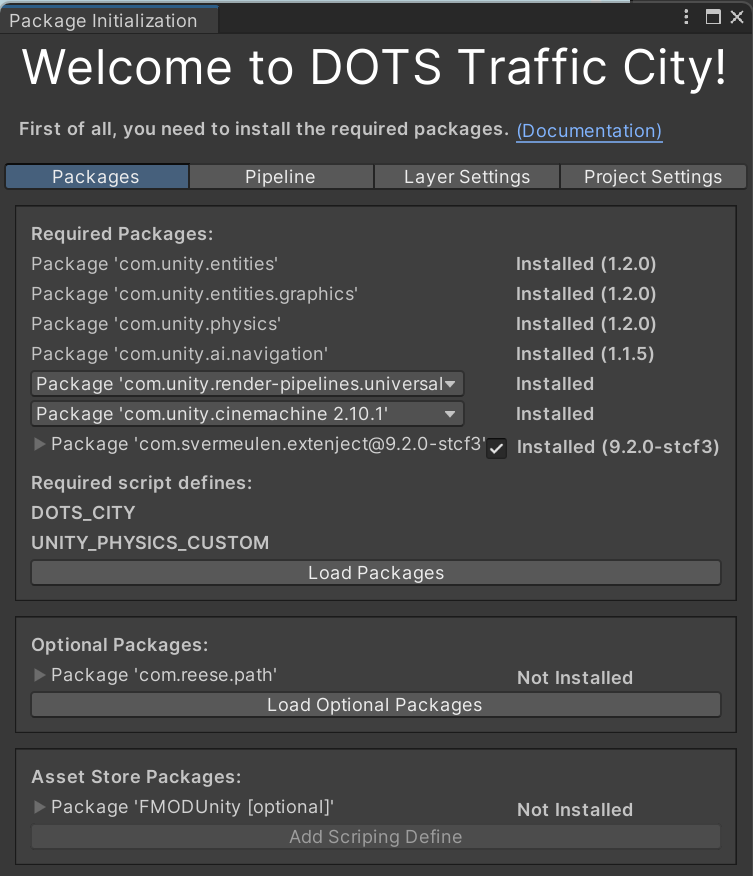
Select Layer settings tab.
Untick Import all project layers option.
Press Import Collision Matrix & Apply buttons.

Remove old Naughty attributes package (if installed).
Restart the Unity.
If the scene has lost the references, close the Unity & delete this file:
[ProjectFolder]/Library/ArtifactDB
The new project is ready.
HDRP
Download HDRP template project.
Remove URP packages in the Package Manager (if exist).
Unpack HDRP package.

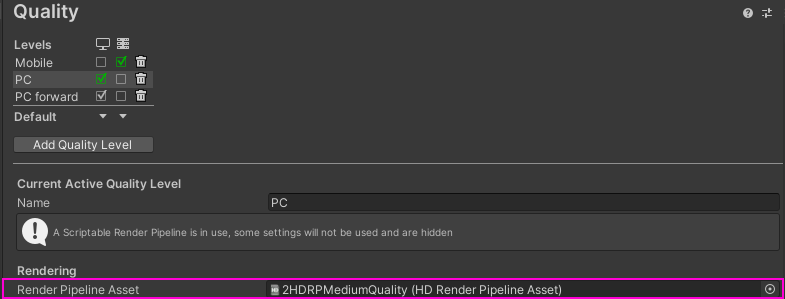
Open quality settings from the Unity toolbar:
Edit/Project settings/QualitySet the Render pipeline asset from the HDRP sample.
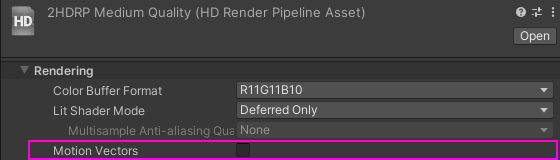
Open assigned pipeline asset & disable Motion Vectors option.
Set the Light settings for the desired scene (light settings can be taken from the HDRP sample).
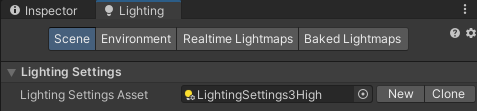
Example.
Set Environment settings for the desired scene.

Example.
Cinemachine v3 Upgrade
Make sure you have downloaded Cinemachine v3 package.
Unpack Main Camera City CM_v3 package.

Select UIInstaller.
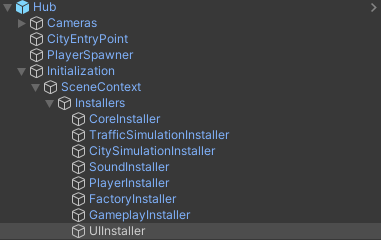
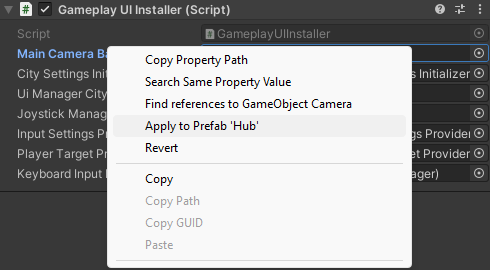
Drag & drop Camera object into Main Camera Base field in UIInstaller.

Right click on this field & press Apply to Prefab Hub.
Cinemachine v2
Unpack Main Camera City CM_v2_legacy package.

Select UIInstaller.
Drag & drop Camera object into Main Camera Base field in UIInstaller.
Right click on this field & press Apply to Prefab Hub.