Upgrade Guide
Upgrading to Full Version (Quick Start)
The upgrade process is fully automated across several phases to handle code compilation and package extraction cleanly.
Instructions
Create a Backup: Before upgrading, make a complete backup of your project files (or commit your current state via Git) to prevent any accidental data loss.
Start the Upgrade: Locate the Project Unpacker asset in your project, select it, and click the Update To Full button in the Inspector.
Wait for Domain Reload: Unity will clear the console, import core constants, and force a script compilation. The editor will briefly freeze—do not close Unity during this reload.
Automatic Package Extraction: Once scripts are compiled, the system automatically triggers OnScriptsReloaded on the Main Thread. It will extract core packages, clone prefabs, and adapt your project settings (PhaseImportingPackages).
Completion: When everything stabilizes, a final confirmation message will appear in your console: “The project is upgraded”.
Troubleshooting
If the process is interrupted midway (due to an unexpected crash, closing the editor, etc.), it will not break your project. Simply select the Project Unpacker asset again and re-click Update To Full to restart the automated pipeline from scratch.
HDRP
Download HDRP template project.
Remove URP packages in the Package Manager (if exist).
Unpack HDRP package.

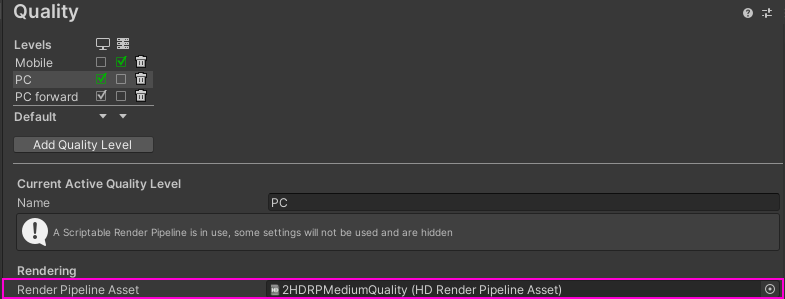
Open quality settings from the Unity toolbar:
Edit/Project settings/QualitySet the Render pipeline asset from the HDRP sample.
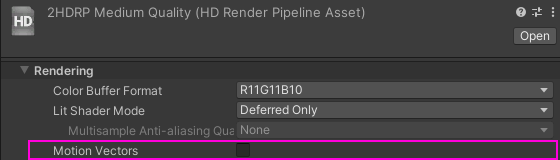
Open assigned pipeline asset & disable Motion Vectors option.
Set the Light settings for the desired scene (light settings can be taken from the HDRP sample).
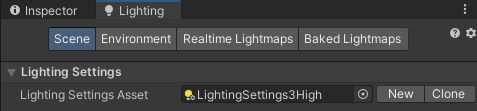
Example.
Set Environment settings for the desired scene.
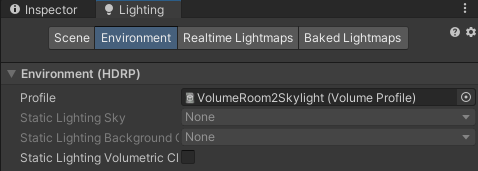
Example.
Cinemachine v3 Upgrade
Make sure you have downloaded Cinemachine v3 package.
Unpack Main Camera City CM_v3 package.

Select UIInstaller.
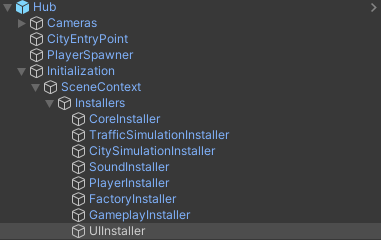
Drag & drop Camera object into Main Camera Base field in UIInstaller.

Right click on this field & press Apply to Prefab Hub.
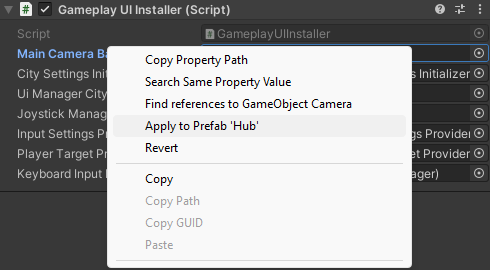
Cinemachine v2
Unpack Main Camera City CM_v2_legacy package.

Select UIInstaller.
Drag & drop Camera object into Main Camera Base field in UIInstaller.
Right click on this field & press Apply to Prefab Hub.