Sound
Built-in
By default is used for all sounds in the project (if FMOD is not installed).
How To Use
Create Sound Data in the Unity project.

Assign your desired AudioClip.
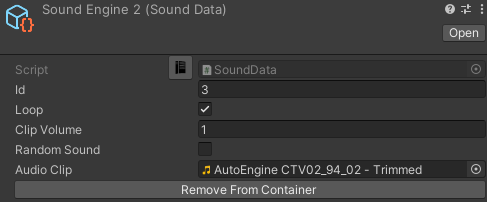
Note
Sound ID is created automatically.
Press Add To Container button to add sound to the Sound container.
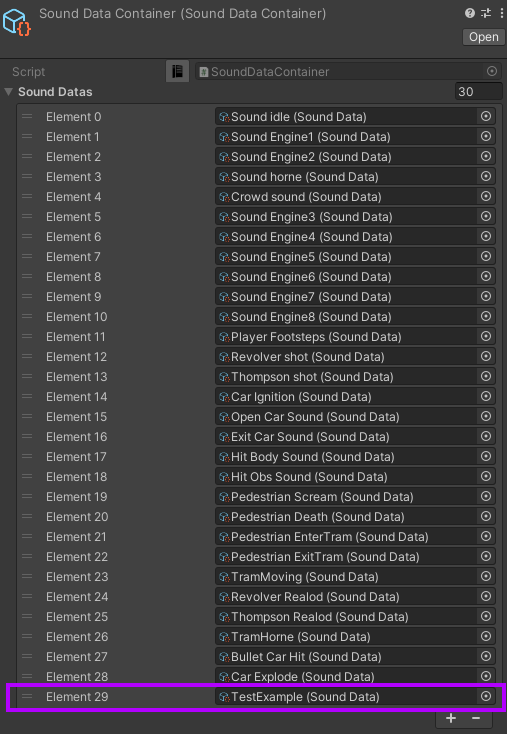
Now, we can trigger the sound using the code examples below.
Code Examples
MonoBehaviour
public class ExampleSoundBehaviour : MonoBehaviour
{
    [SerializeField] private SoundData exampleSoundData;

            private void PlaySound()
            {
                    SoundManager.Instance.PlayOneShot(exampleSoundData, transform.position);
            }
    }
Jobs
If you want to create sound in Job, read here.
FMOD
FMOD is used for all sounds in the project (if FMOD installed).
Installation
Download the FMOD plugin from the Asset Store.
Add the FMOD scripting define to the project.
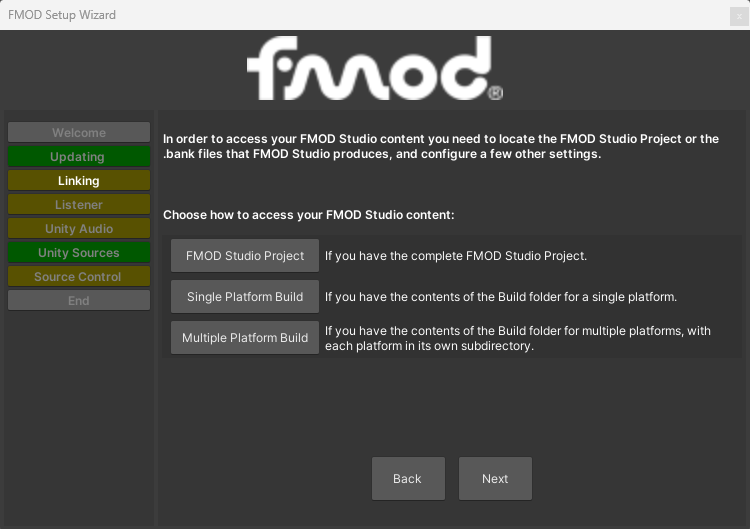
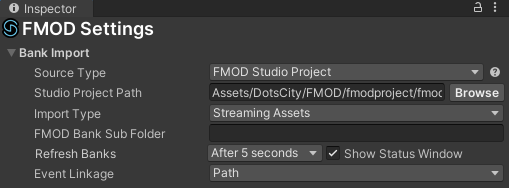
Select the project FMOD path in the window that appears on the Linking tab (by default DotsCity/FMOD/fmodproject/fmodproject.fspro).
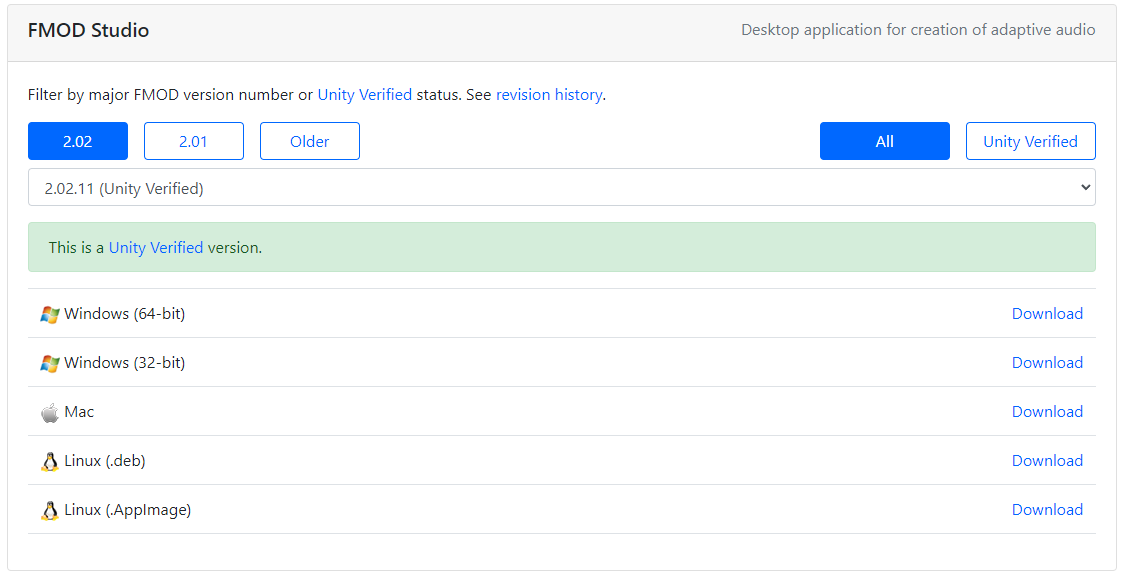
Sign up & download the FMOD Studio software from the official site (official guide) [optional step, required if you want to add & edit sounds].
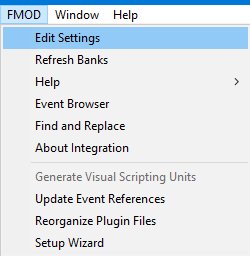
Open FMOD settings.
By default, project path: FMOD project path DotsCity/FMOD/fmodproject/fmodproject.fspro, make sure that the FMOD project path is set correctly.
How To Use
Open FMOD Studio installed on your computer.
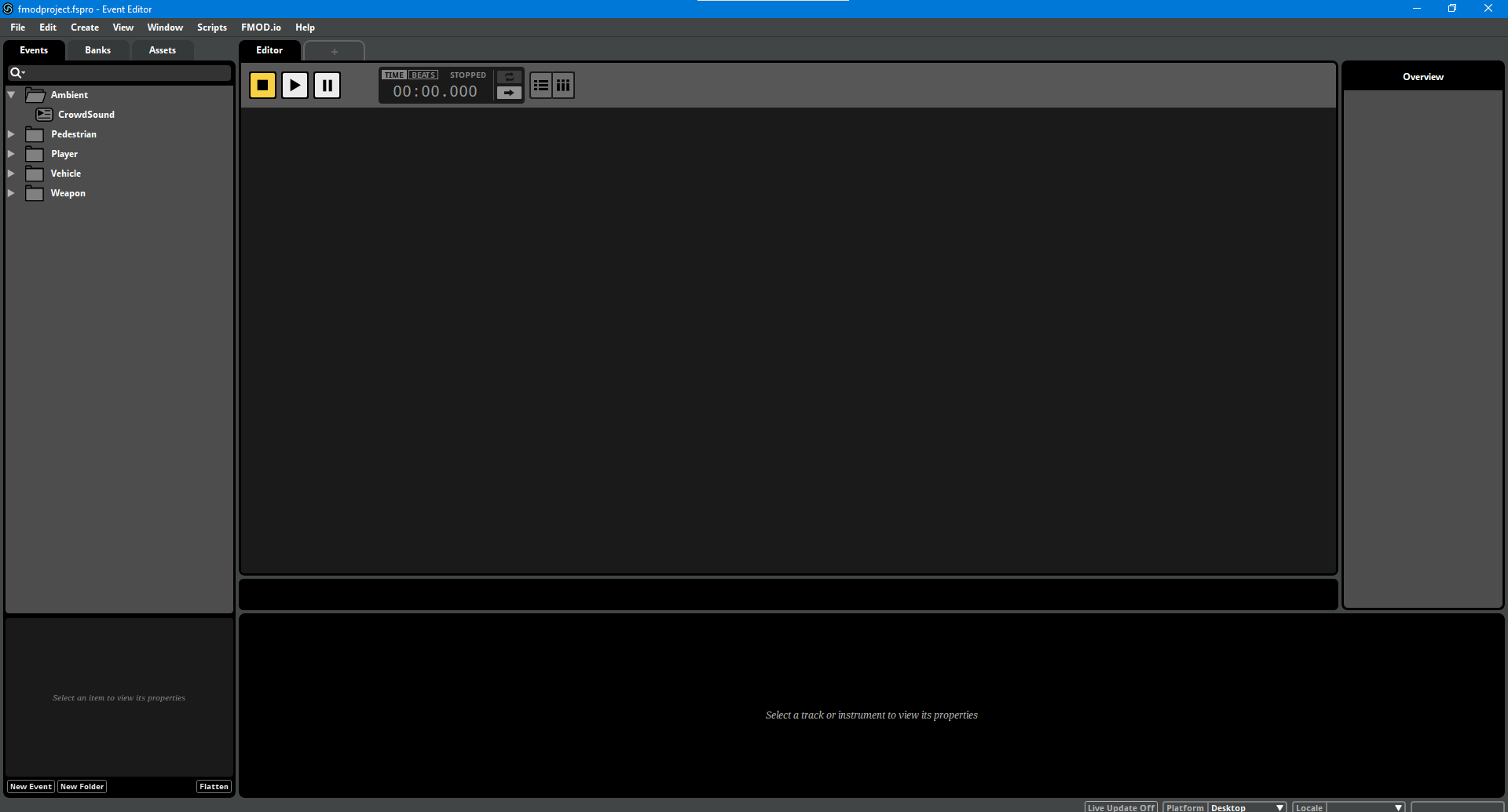
Open Bank bookmark.
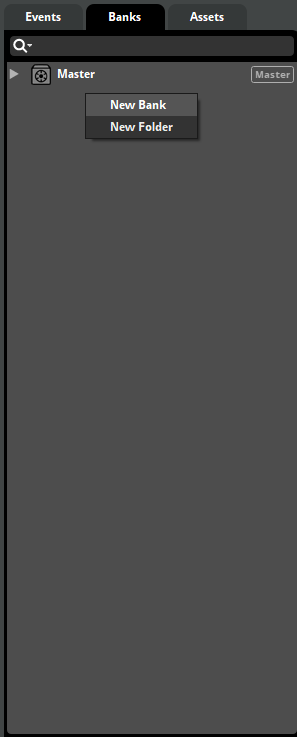
If you do not have an existing bank or need to create a new one, right-click in the window and press New Bank.
In the bookmark Events - Create or open exist folder.
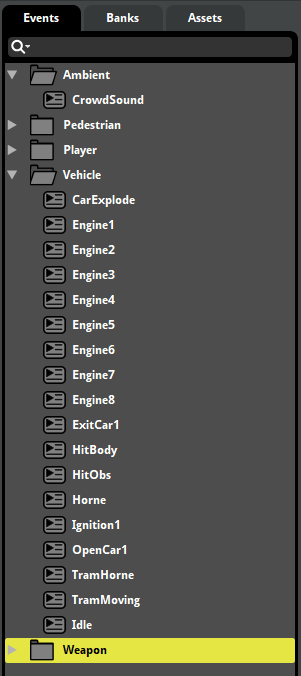
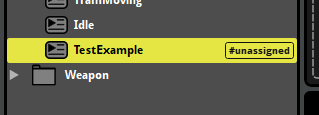
Right-click on the created folder and press Create Event, rename created event.
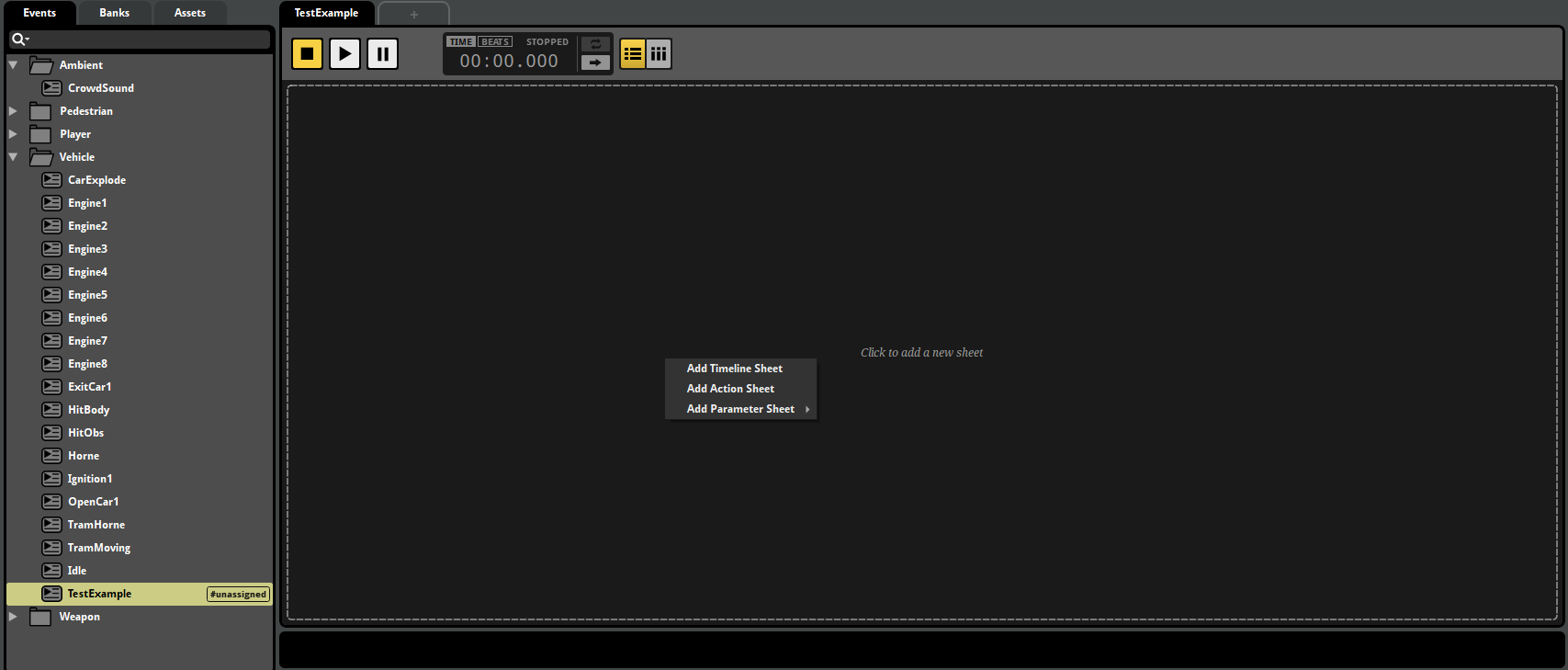
Right-click on Add Timeline Sheet in the created event.
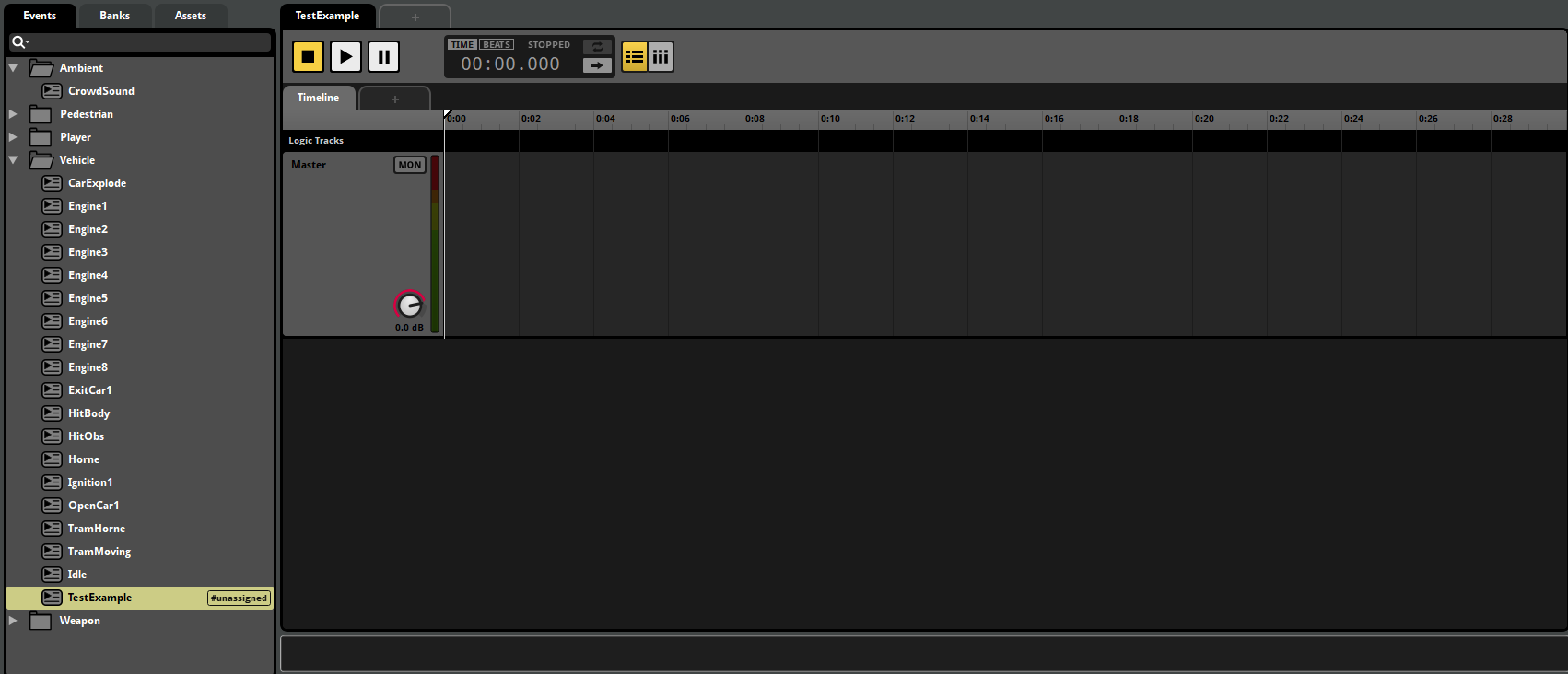
Drag and drop the desired sound into the timeline.
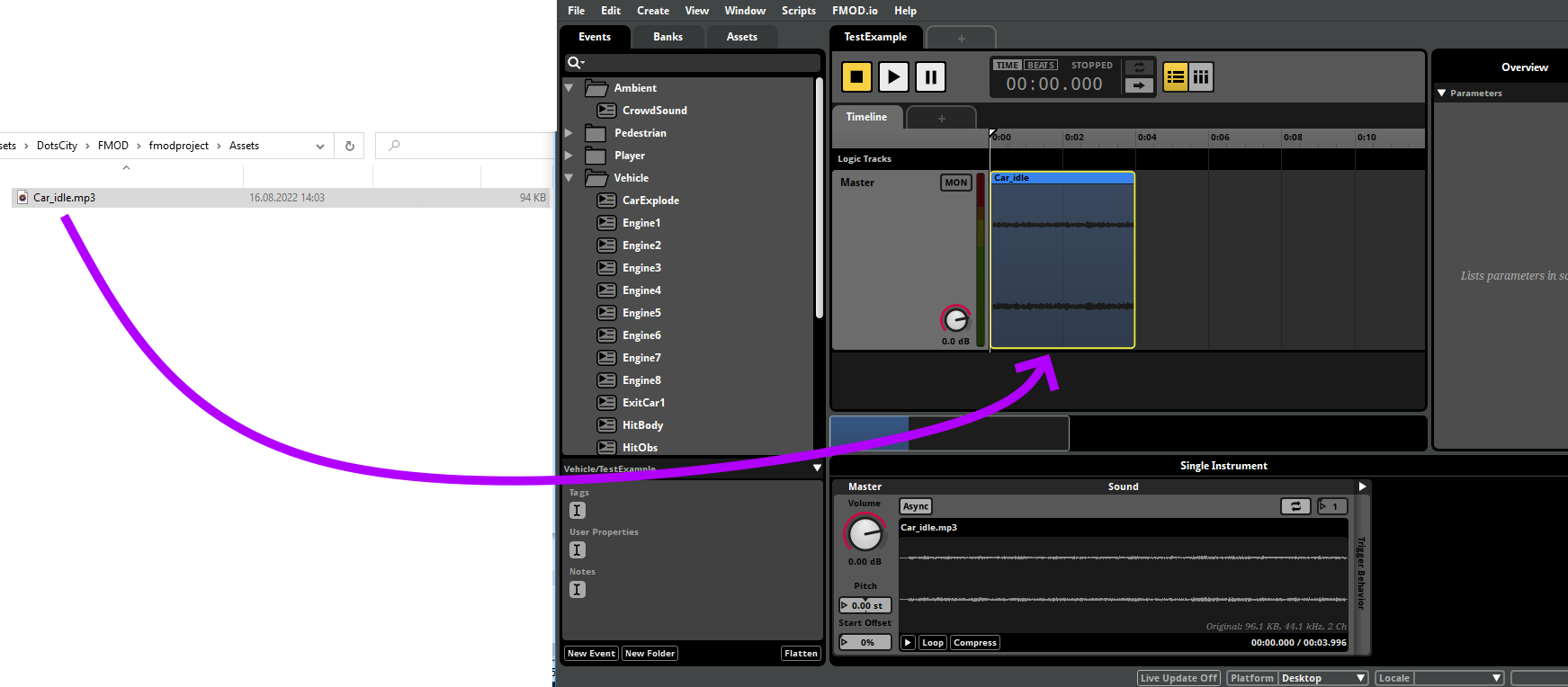
Customize your sound.
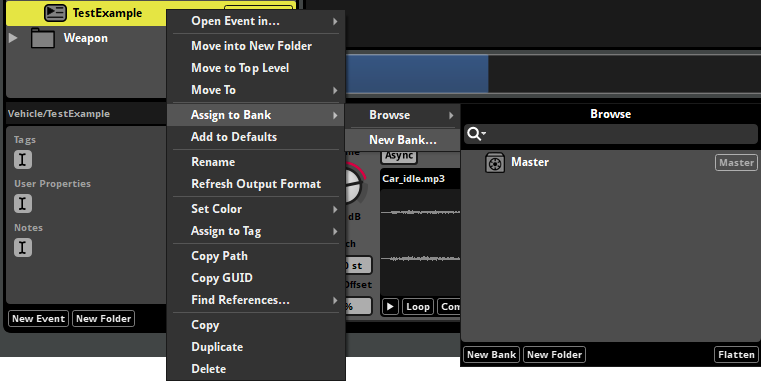
Assign the selected FMOD event to the Bank.
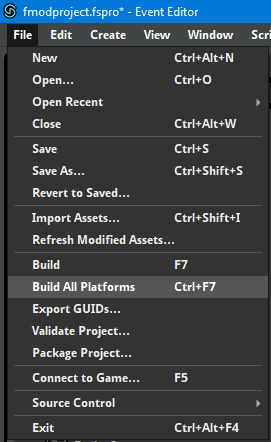
Build FMOD project.
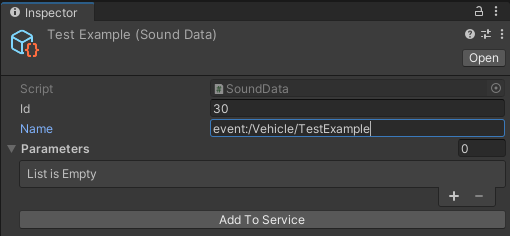
Create Sound Data in the Unity project.
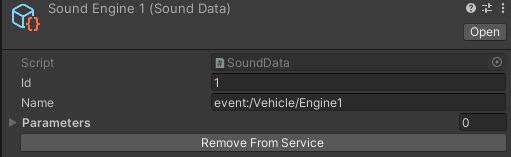
Enter trigger name event:/Vehicle/TestExample.
Note
Sound ID is created automatically.
Press Add To Container button to add sound to the Sound container.
Now, we can trigger the sound from the code.
Data
Sound Data
Contains data about the sound.
How To Create
Select from the project context menu:
Spirit604/City/Sound/Sound Data
Settings
Built-in
FMOD
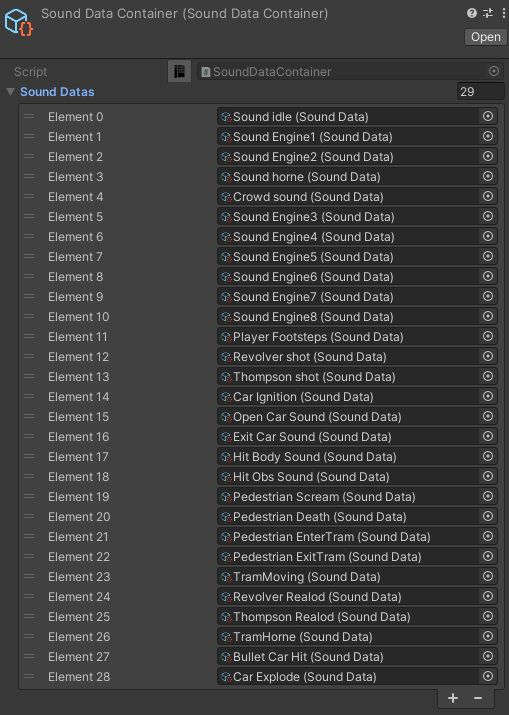
Sound Data Container
Contains data on all sounds in the Unity project.
Warning
If you do not add sound to the service, it cannot be activated from the code.
Code Examples
Sound Types
Default : default sound entity.
One Shot : entity played once & destroyed afterwards.
Tracking : entity tracks target entity.
Tracking Vehicle : entity tracks target vehicle entity.
Tracking And Loop : entity tracks target entity & loop playback.
How To Create
EntityManager methods
SoundExtension.CreateSoundEntity(ref this EntityManager entityManager, int soundId, float volume = 1f)
// Creating a default sound entity.
SoundExtension.CreateTrackedSoundEntity(ref this EntityManager entityManager, int soundId, Entity parentEntity, float volume = 1f)
// Creation of a sound entity that follows a given entity.
SoundExtension.CreateChildSoundEntity(ref this EntityManager entityManager, int soundId, Entity parentEntity, float volume = 1f)
// Creation of a sound entity that will be a child of a given entity.
CommandBuffer methods
Burst compatible methods.
SoundExtension.CreateSoundEntity(ref this EntityCommandBuffer commandBuffer, Entity soundPrefabEntity, int soundId, float volume = 1f)
// Creating a default sound entity.
SoundExtension.CreateSoundEntity(ref this EntityCommandBuffer commandBuffer, Entity soundPrefabEntity, int soundId, float3 position, float volume = 1f)
// Create a sound entity at a specific position.
Create prefab query method
SoundExtension.GetSoundQuery(EntityManager entityManager, SoundType soundType)
// Get `EntityQuery` with the selected `Sound type`.
Create sound example
public partial class ExampleSoundSystem : SystemBase
{
    private EntityQuery soundPrefabQuery;

    protected override void OnCreate()
    {
        soundPrefabQuery = SoundExtension.GetSoundQuery(EntityManager, SoundType.Default);
    }

            protected override void OnUpdate()
            {
                    var commandBuffer = ...
                    var soundPrefabEntity = soundPrefabQuery.GetSingletonEntity();

                    // Pass 'commandBuffer' & 'soundPrefabEntity' into the IJobEntity or Entities.ForEach
                    // commandBuffer.CreateSoundEntity(soundPrefabEntity, soundId, position);
                    // 'soundId' can be taken from 'SoundData'
            }
Params
soundId : id of sound taken from sound data.
soundPrefabEntity : sound prefab entity taken from EntityQuery.
position : initial position of the sound.
volume : volume of the sound (0..1 range).
How To Play
public partial class PlayAndStopSoundExampleSystem : SystemBase
{
protected override void OnUpdate()
{

// Get world sounds
var sounds = GetComponentLookup<SoundEventComponent>(false);

Entities
.WithBurst()
.ForEach((
        Entity entity
        in SoundHolder soundHolder) =>
{
        // Some play condition
        bool shouldPlay = true;

        // Some sound entity container component
        Entity soundEntity = soundHolder.Entity

        SoundEventComponent soundEvent = sounds[soundEntity];

        if (shouldPlay)
        {
                soundEvent.SetEvent(SoundEventType.Play);
        }
        else
        {
                soundEvent.SetEvent(SoundEventType.StopFadeout);
        }

        sounds[soundEntity] = soundEvent;

}).Schedule();
}
}
How To Destroy
Enable the PooledEventTag component in the sound entity.
How To Loop
Create a Sound entity.
Add a LoopSoundData component (assign a Duration value).