Traffic Test Scene

How To Use

Youtube tutorial.

  1. Create a road segment.

  2. Create a parent GameObject and add the TrafficCarRoadDebugger component.

  3. In the created component, press the Show buttons.

  4. Select the in paths in the scene where you want the vehicle to spawn.

  5. Adjust the normalized path position to set the spawn point.

  6. Start the scene.

  7. Click the Spawn button in the component.

  8. Learn more about the TrafficCarRoadDebugger settings.

Test Cases

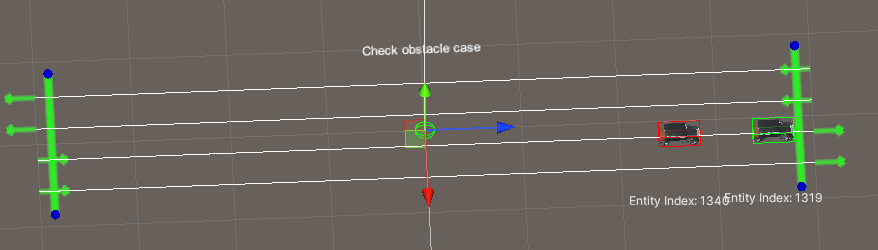
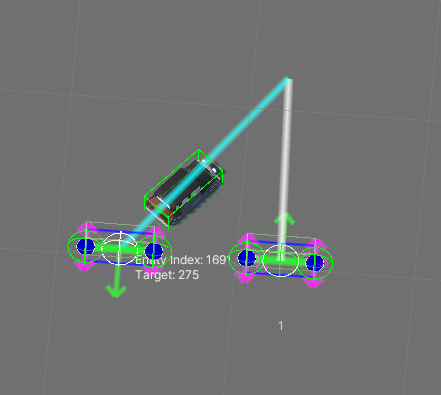
Check Obstacle

Config obstacle parameters.
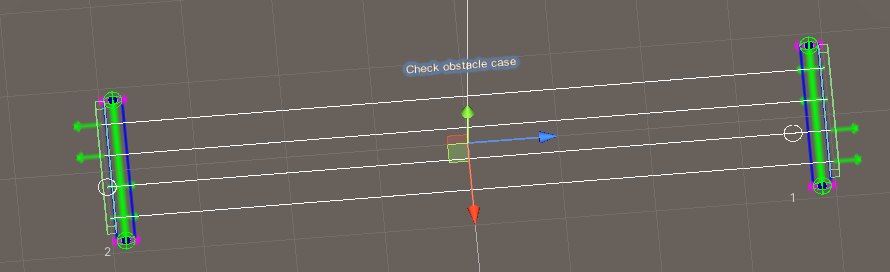
_images/CheckObstacleTest.png

Source settings.

_images/CheckObstacleTest2.png

Test case result.

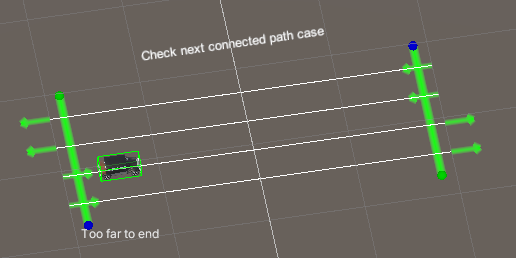
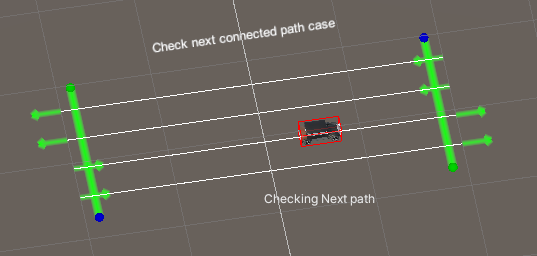
Check Next Connected Path

Config Next connected path parameter.
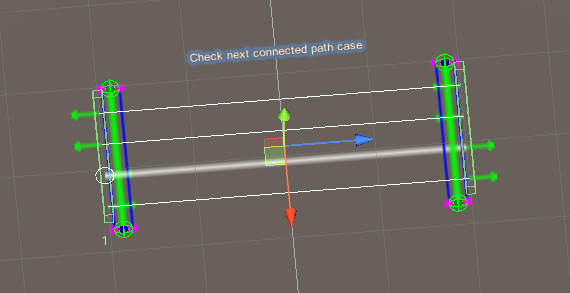
_images/CheckNextConnectedPathTest.png

Source settings.

_images/CheckNextConnectedPathTest2.png _images/CheckNextConnectedPathTest3.png

Test case result.

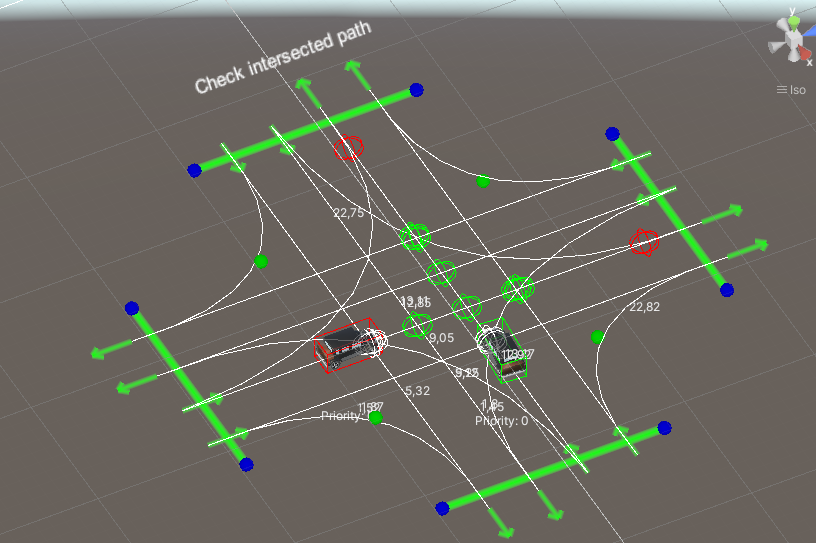
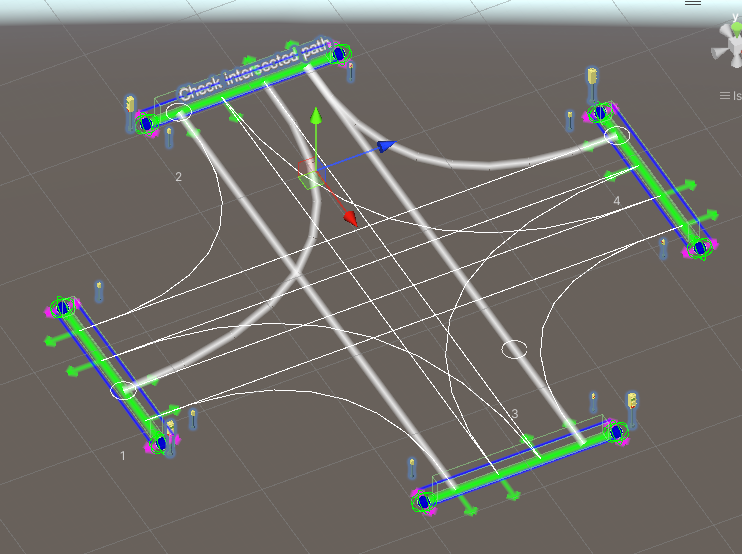
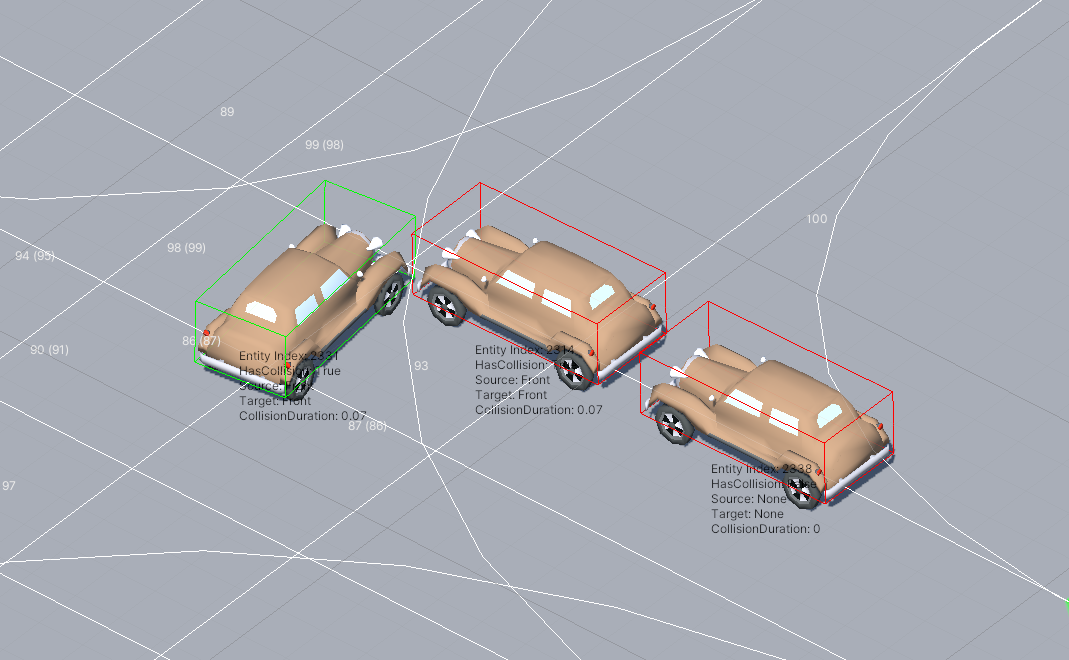
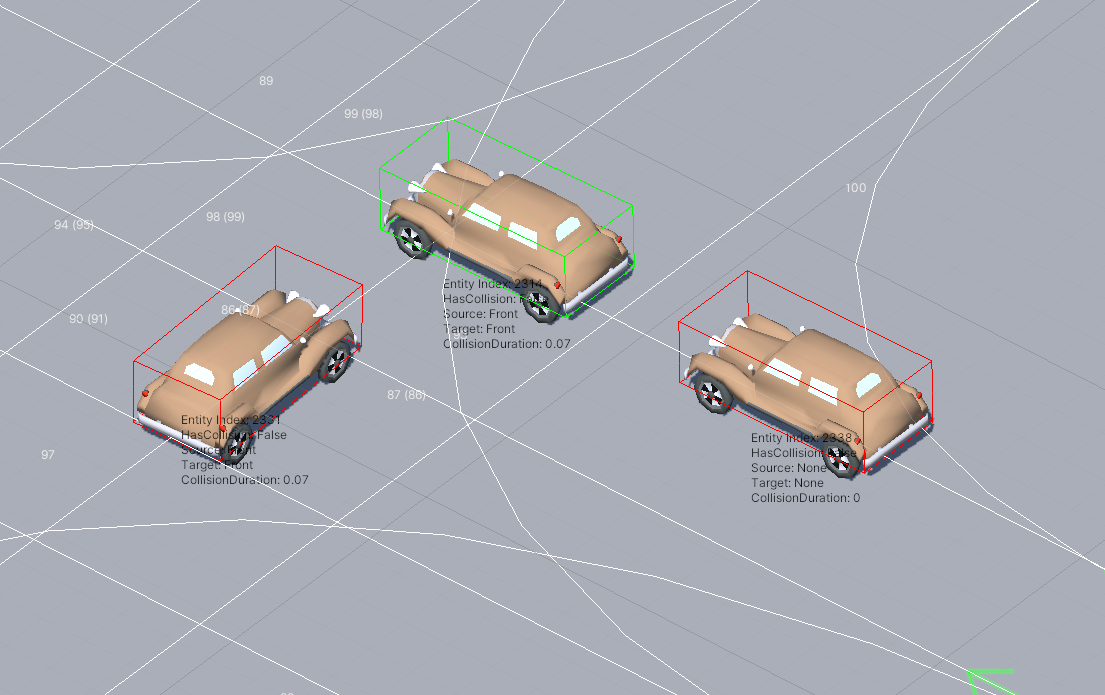
Check Intersected Path

Config Intersected parameters.

Two cars
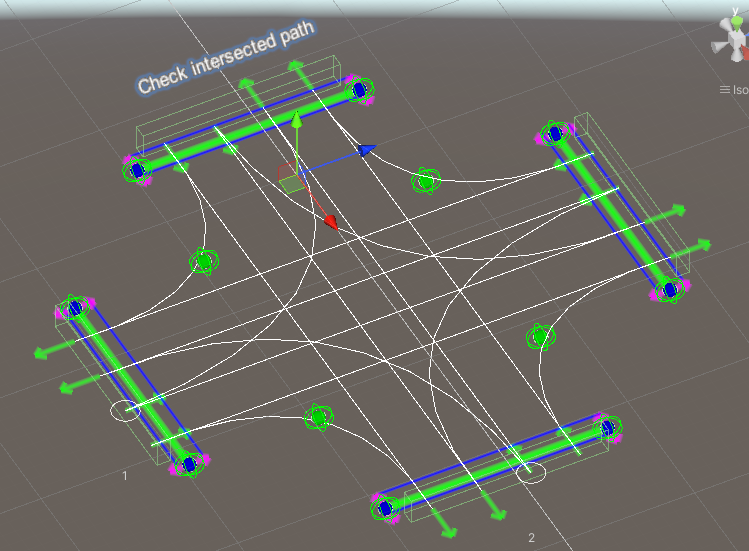
_images/IntersectedPathTest.png

Source settings.

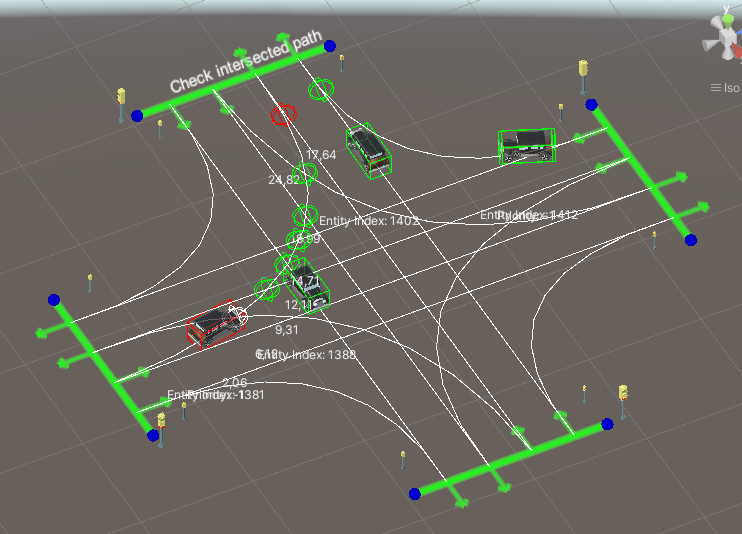
_images/IntersectedPathTest2.png

Test case result.

Multiple cars

_images/IntersectedPathTest3.png

Source settings.

_images/IntersectedPathTest4.png

Test case result.

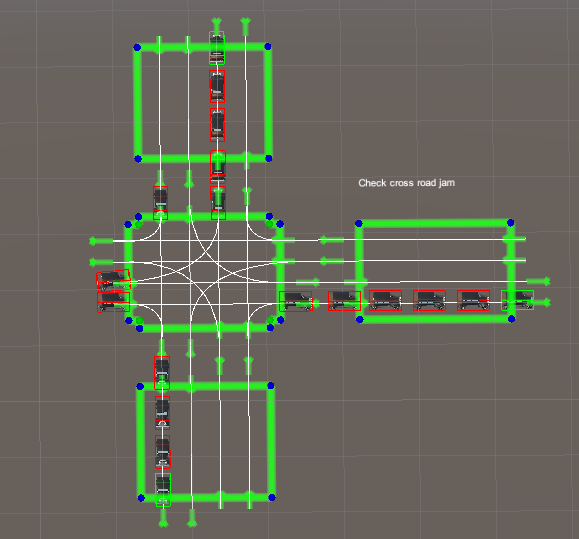
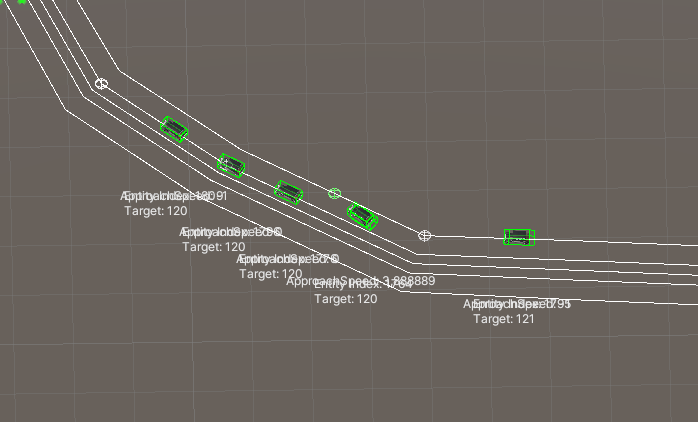
Check Crossroad Jam

Config Avoid crossroad jam parameter.
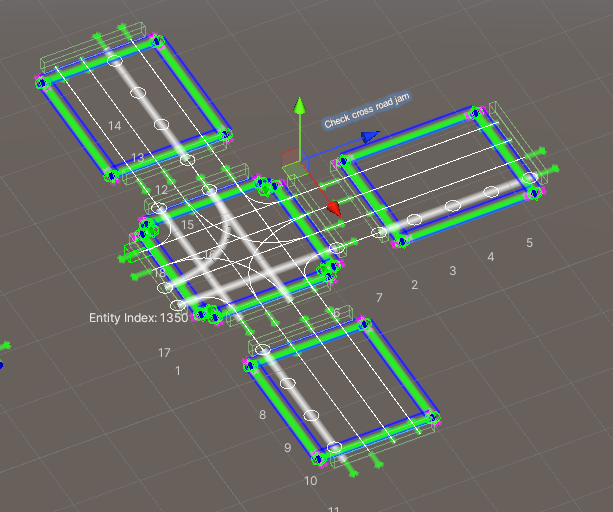
_images/CheckJamTest.png

Source settings.

_images/CheckJamTest2.png

Test case result.

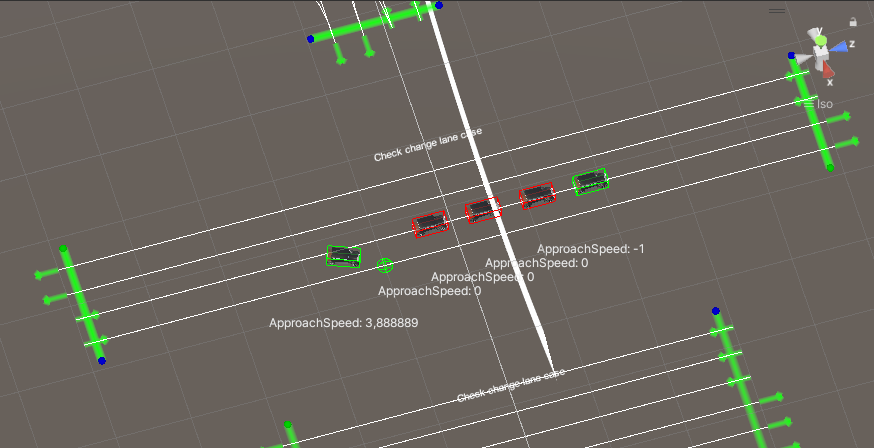
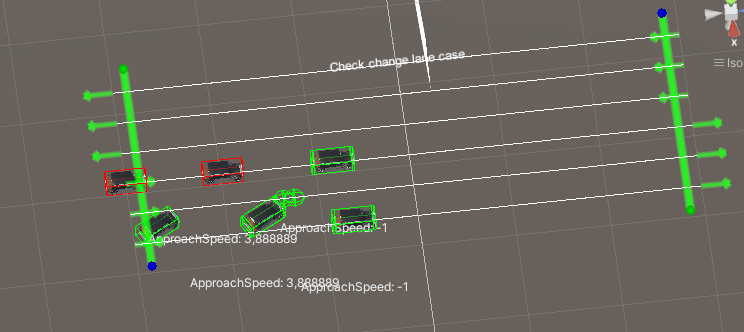
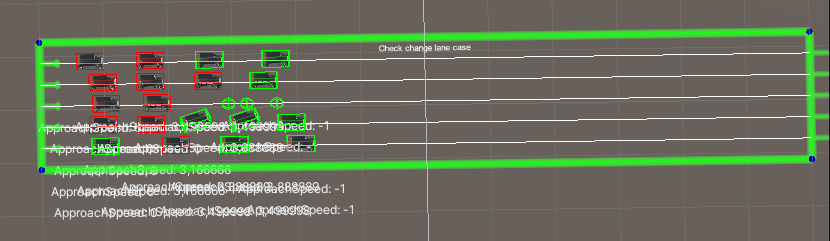
Check Change Lane

Config parameters.

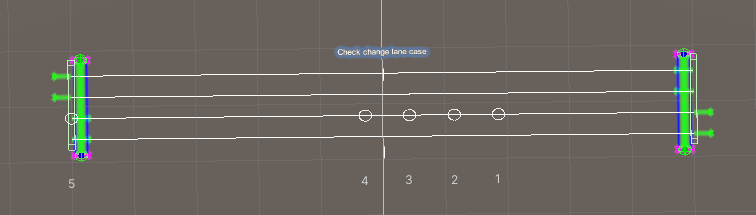
Traffic jam in the lane
_images/ChangeLaneTest1.png

Source settings.

_images/ChangeLaneTest2.png

Test case result.

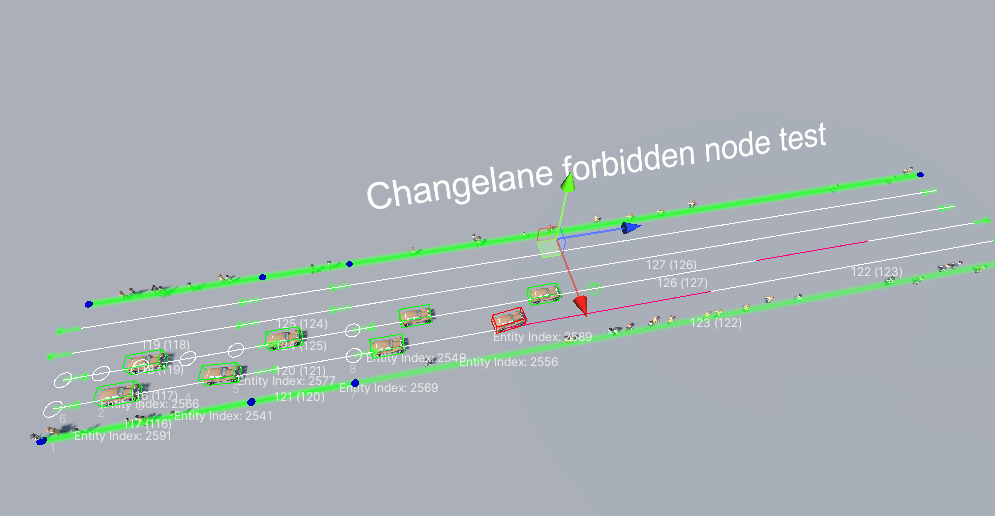
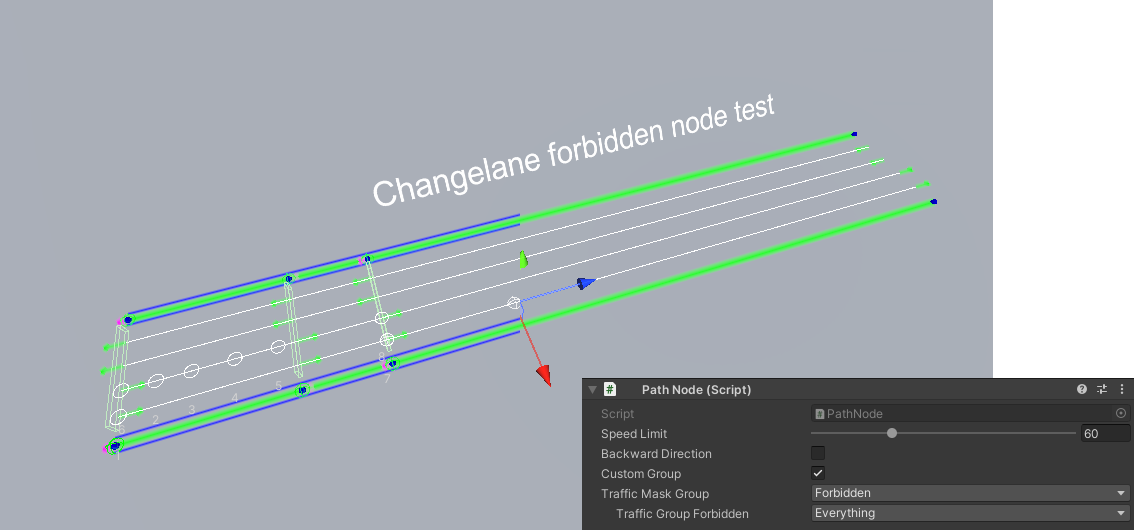
Traffic fobbidden node test
_images/ChangeLaneNodeTest1.png

Source settings.

_images/ChangeLaneNodeTest2.png

Test case result.

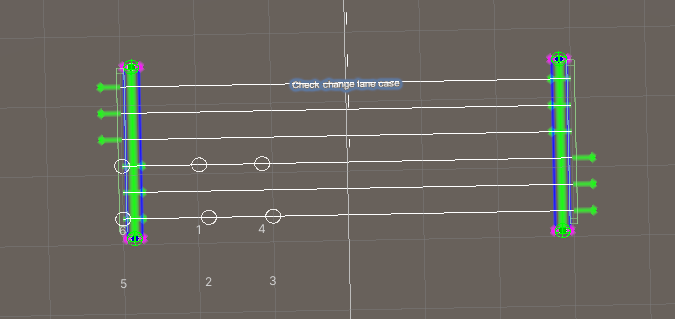
Multiple lanes test 1
_images/ChangeLaneTest3.png

Source settings.

_images/ChangeLaneTest4.png

Test case result.

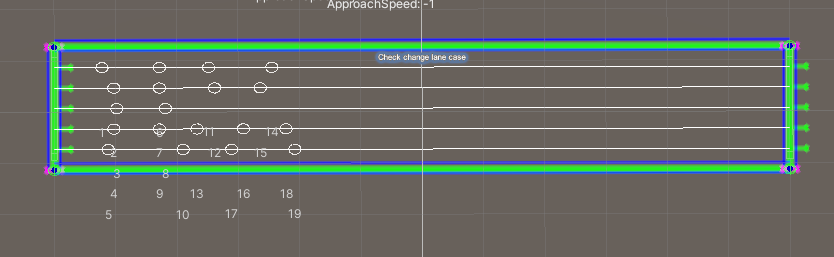
Multiple lanes test 2
_images/ChangeLaneTest5.png

Source settings.

_images/ChangeLaneTest6.png

Test case result.

High speed change lane
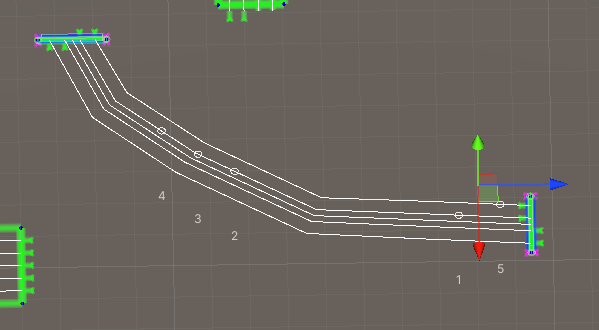
_images/ChangeLaneTest7.png

Source settings.

_images/ChangeLaneTest8.png

Test case result.

Check Traffic Reverse
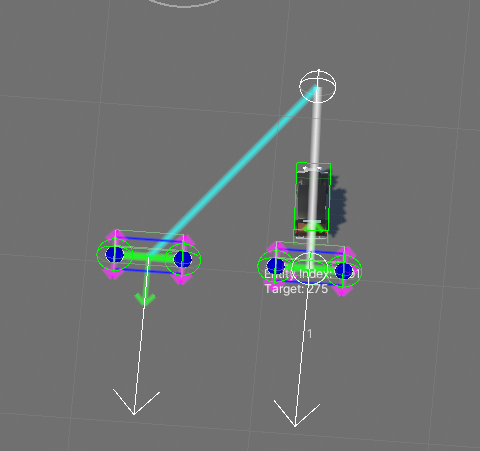
_images/BackwardTest1.png

Source.

_images/BackwardTest2.png

Final result result.

Check Avoidance

Test case of traffic avoidance config.
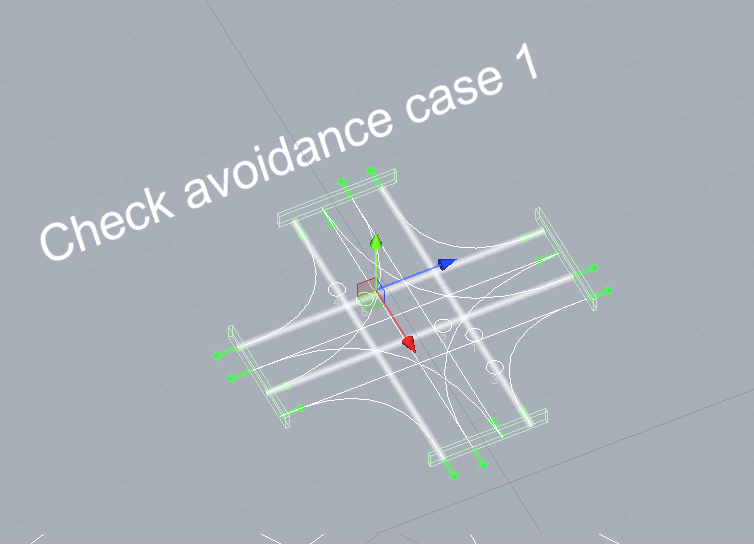
_images/AvoidanceExampleSource.png

Source settings.

_images/AvoidanceExample1.png

Cyclical obstacle example.

_images/AvoidanceExample2.png

Avoiding cyclical obstacle example.

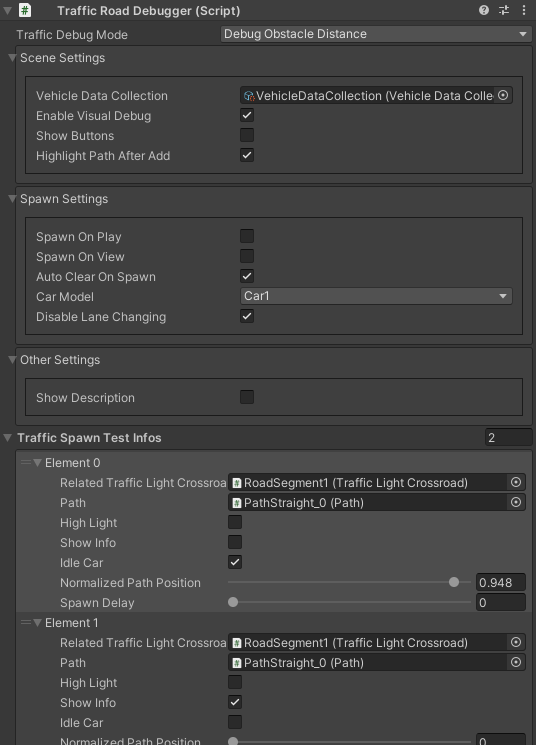
Traffic Road Debugger

_images/TrafficCarRoadDebugger.png

Scene settings

Vehicle data collection : reference to the collection of all vehicles.
Enable visual debug : on/off visual debug in the scene.
Show buttons : show add path button to the component in the scene.
Highlight path after add : on/off highlight path after adding.

Spawn settings

Spawn on play : spawn the cars after the start of the scene.
Auto clear on spawn : previously created cars in the test case will be destroyed on a new spawn.
Spawn car model : car model of spawning cars.
Disable lane changing : forcibly disabling the ability for vehicles to change lanes.

Other settings

Show description : show description of test case.

Traffic spawn test entry

Related trafficlight crossroad : linked trafficlight crossroad.
Path : linked path for the spawned cars.
Highlight : on/off highlight path.
Show info : on/off visual info of spawned cars in the scene.
Idle car : on/off vehicle idle of the spawned vehicle.
Normalized path position : min approach speed.
Spawn delay : delayed vehicle spawn after test case spawn has started.