Path
Path is a set of waypoints along which vehicles travel and is a connection between traffic nodes.
How To Create
Paths are generated in RoadSegment using RoadSegmentCreator or you can add them to existing Road Segments using the Path Creator tool
How To Customize
Settings
- There are two ways to edit:
Directly in the Inspector.
Using the Advanced Settings Window.
Nodes
How To Move
Enable Show handles option.
Drag the desired path handles.
How Add & Remove
Enable Show handles option.
Enable Show edit buttons option.
Press the + button to add or press the x to remove node.
Path Settings
Cached values
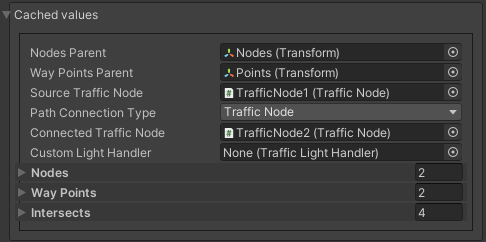
- Path connection type:
- Traffic node :
Connected traffic node : connected traffic node.
- Path point :
Connected path : connected path in the custom point.
Settings
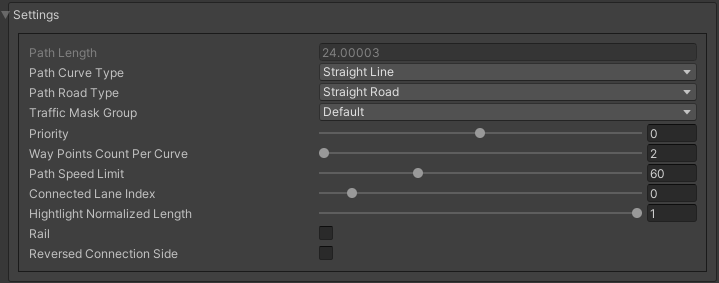
- Path curve type:
Straight line : default point to point line.
Bezier cube : bezier cube curved line.
Bezier quad : bezier quad curved line.
- Path road type:
Straight road : is used to automatically calculate lane changing by traffic.
Turn road
Traffic mask group: group types of traffic vehicles that can go on this path.
Visual Settings
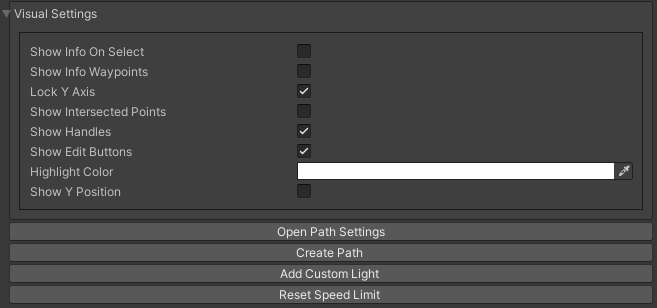
Common settings
Curved settings

Path point settings

Traffic Node connection
Default connection between traffic nodes in road segment, used in most cases.
Path Point connection
Is used to connect one path to another in a path in a custom point.
How To Use
Select source path in the scene.
Select Path connection type to Path Point in the inspector.
Enable Show attach path buttons.
Select desired path.
Customize position handles of source path nodes.
Waypoint Info
The path is made up of these waypoints, which direct each vehicle.
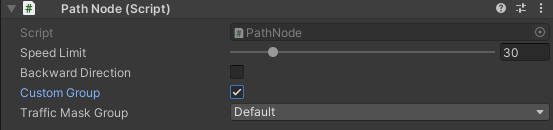
Note
You can debug the group nodes here.
Traffic Group Info
Each path contains a mask which, depending on the mask type, contains a group of the selected TrafficGroupType.
A vehicle that has the correct TrafficGroupType can be driven or spawned on this path.
If the vehicle enters the forbidden path or path node, it will automatically try to change the current lane (test scene).
Note
- You can change the available types in the Global Settings or in the enum file:
TrafficGroupType.cs
You can debug the path group here.
How To Change
Open the Global Settings window.
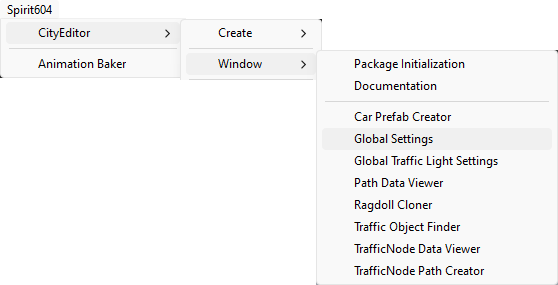
Select the Traffic Group Types tab.
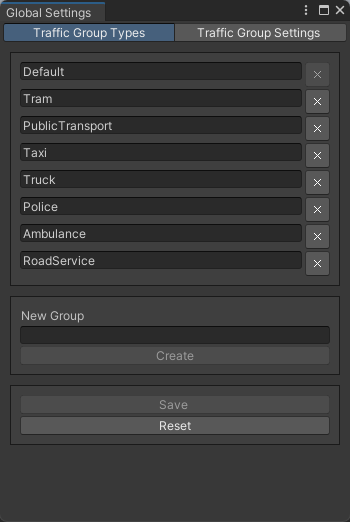
Rename, remove, add groups as you wish.
After making any changes, click on the Save button.
Traffic Group Settings
How To Create
Settings automatically created if missing in project path Assets/Resources/Spirit604/TrafficGroupMaskSettings.asset.

Settings
Contains the types of default group and user-created groups.
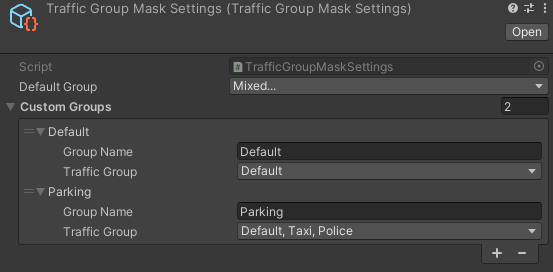
Mask Types
Default
Default group of the TrafficGroupType that defined in the settings.
Allowed
User-selected TrafficGroupType types that can go through the path.
Forbidden
User-selected TrafficGroupType types that are forbidden the path (not selected in the list is allowed).
Custom Group
Custom group of TrafficGroupType that defined in the settings.
Advanced Settings Window
How To Open
Select the Path.
Press Open Path Settings button in the inspector.
Settings
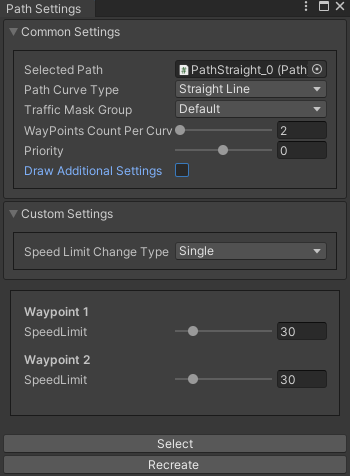
Common settings
Custom settings
Speedlimit change type :
Single
Single - change each waypoint one at a time.
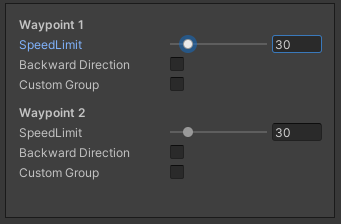
Draw additional settings enabled.
Multiple
Multiple - the speed limit will be changed on the selected section.

- Multiple node change type:
Fixed : all waypoints change speed limit.
- Interpolatespeed will be interpolated from the beginning of the section to the end.
- Interpolate type :
Node index : speed is interpolated relative to the waypoint index.
Distance : speed is interpolated relative to the position of the waypoint.
Start speed limit : initial speed limit of the section.
End speed limit : end speed limit of the section.
- How to use:
Select the start and end of the section in the window or switch on the Draw Select Buttons and select the start (S) and end (E) in the scene.
- Set the parameter Selected Path Speed Limit to the value you need.
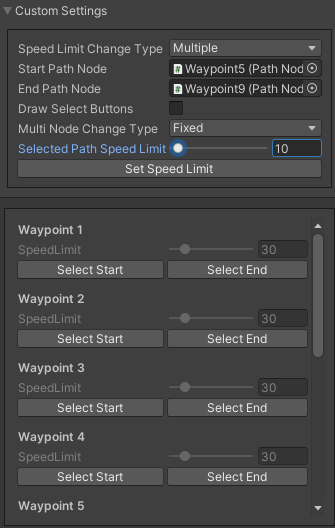
- Click Set Speed Limit.
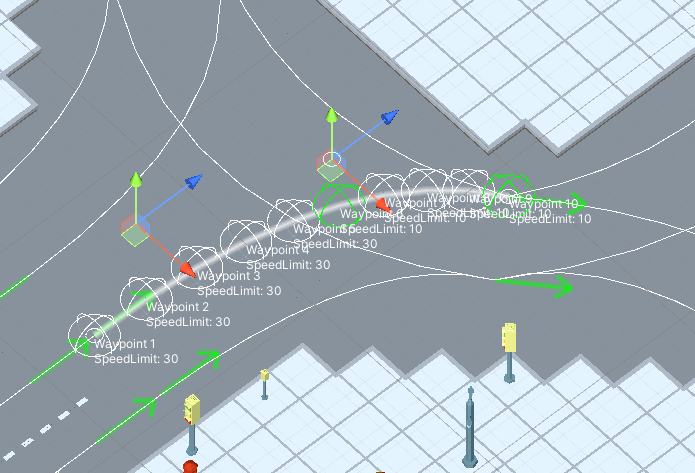
Result.
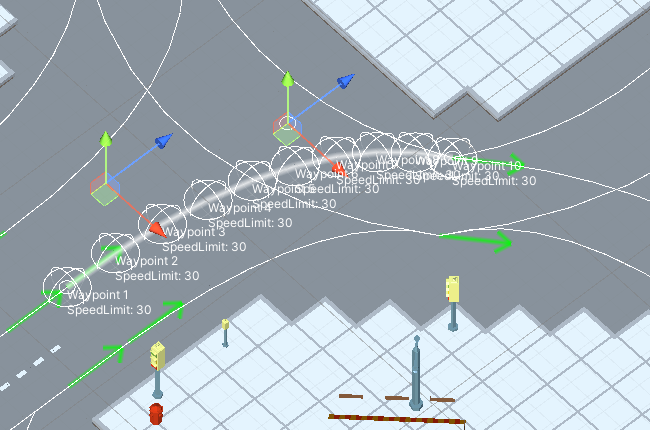
Source path example.
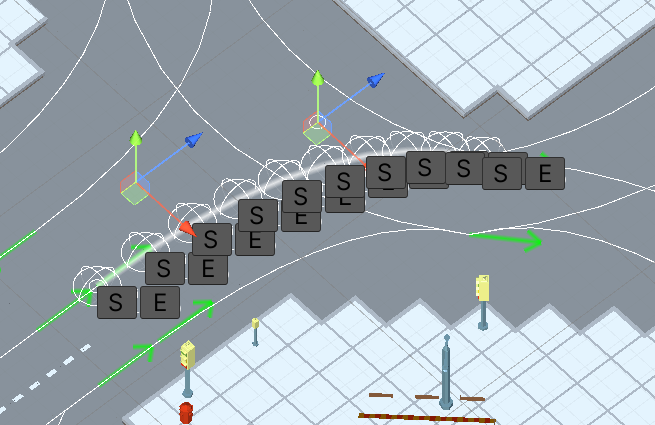
Draw Select Buttons enabled “S” (start) “E” (End) example.
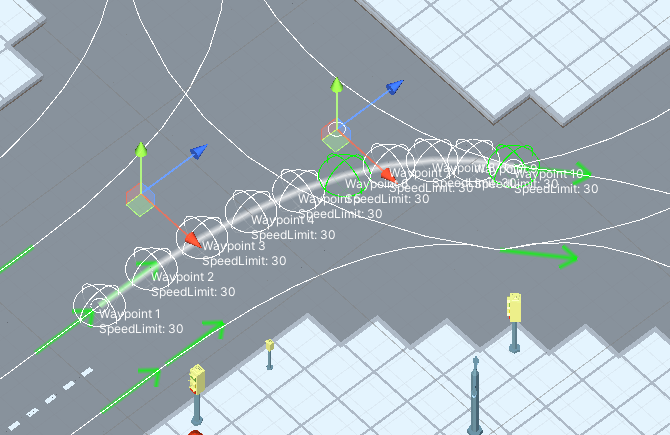
Path section selected (green circles start & end of section) example.
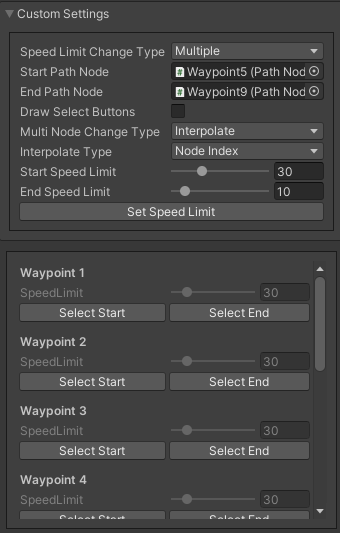
Interpolating settings example.
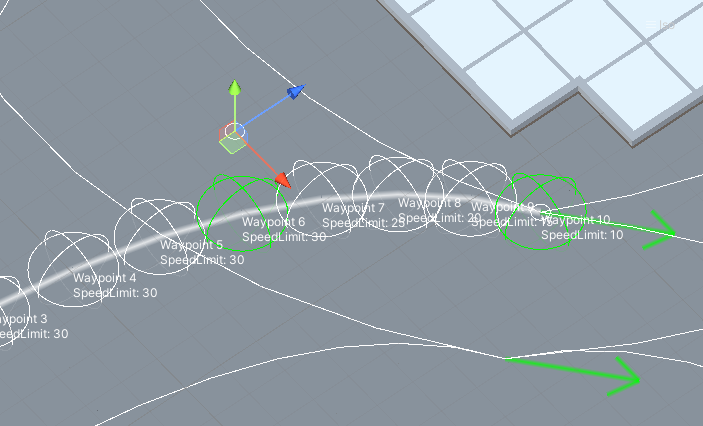
Interpolating result.
All way
All way - all path waypoints will change the speed limit according to the set options.
- Multiple node change type:
Fixed : all waypoints change speed limit.
- Interpolatespeed will be interpolated from the beginning of the section to the end.
- Interpolate type :
Node index : speed is interpolated regarding to the waypoint index.
Distance : speed is interpolated regarding the position of the waypoint.
Start speed limit : initial speed limit of the section.
End speed limit : end speed limit of the section.
- How to use:
- Set the parameter Selected Path Speed Limit to the value you need.
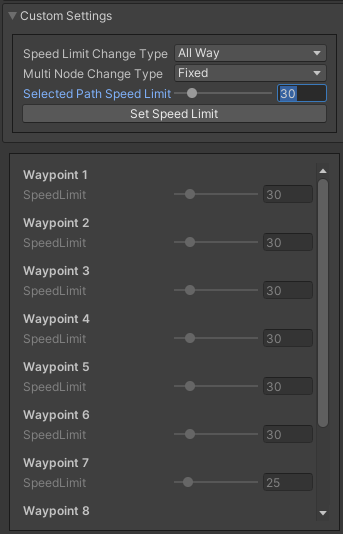
- Click the Set Speed Limit button.
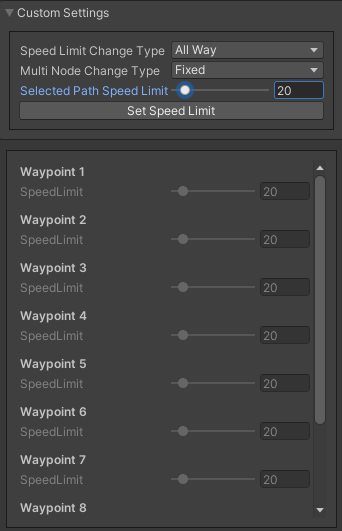
Result.
Custom section
Custom section - the section with the custom speed is automatically generated depending on the parameters.
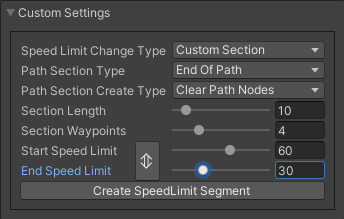
- Path section type:
Start of path : section will be created at the beginning of the path.
End of path : section will be created at the end of the path.
All path : section will be generated all along the path.
- Path section create type:
Clear path nodes : waypoints will be generated anew each time a section is created.
Use exist nodes : existing waypoints will be used for the section.
- How to use:
Set all parameters.
Click Create SpeedLimit Segment.
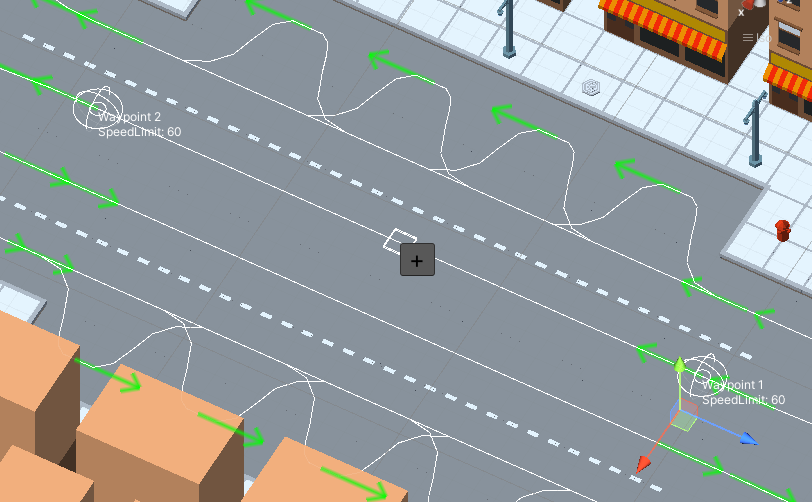
Source path.
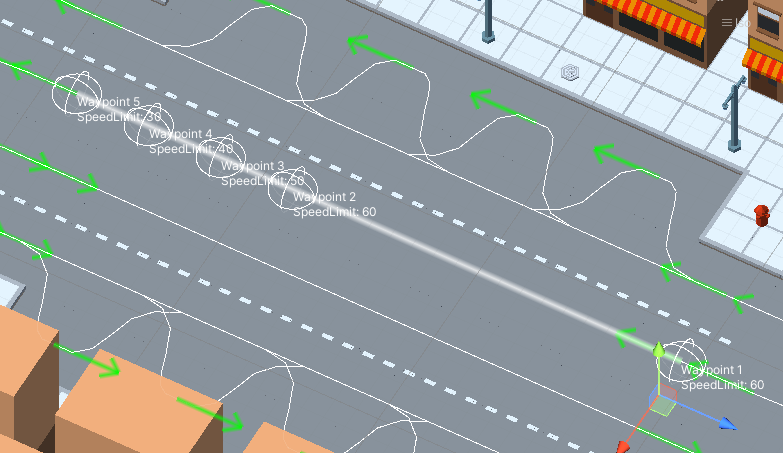
Result.
Baking Info
Each path bakes the data to speed up the entity conversion. How to bake.
- Baked Data:
Path Length (is used to calculate obstacles on the path by TrafficCarObstacleSystem).
Intersection data (segment baking info) (used by TrafficCarObstacleSystem to order the intersection of intersecting paths).