Traffic Light
How To Customize City Crossroads
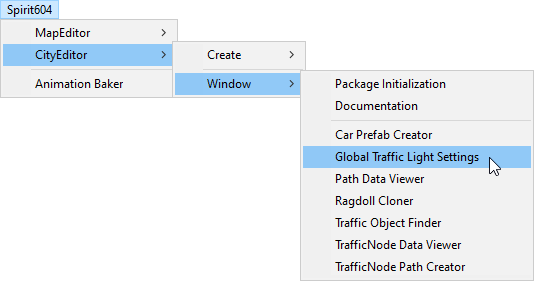
Open Global Light Settings.
Spirit604/CityEditor/Window/Global Traffic Light Settings
Enable Show world info.
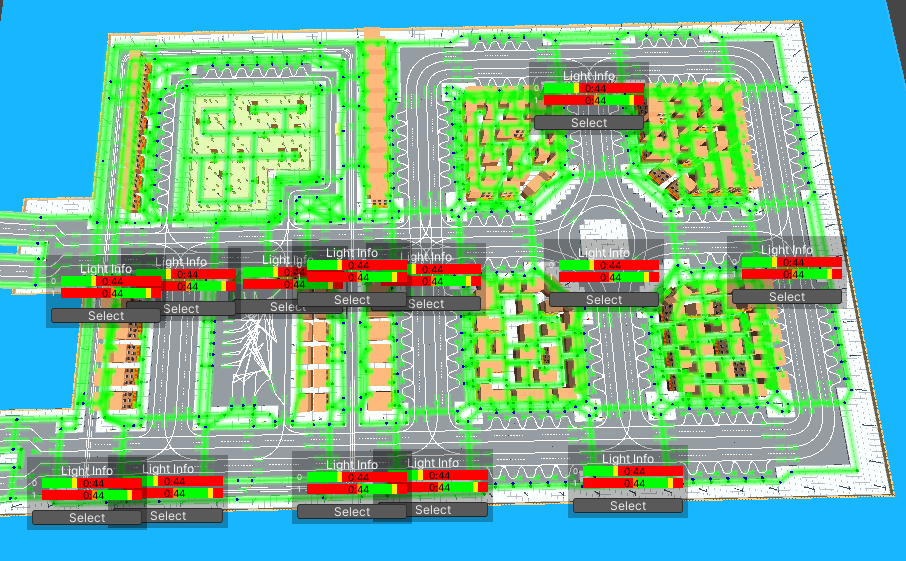
You can now quickly view and adjust the timelines of all the crossroads.
Enable Show disabled Lights to see crossroads with traffic lights switched off.
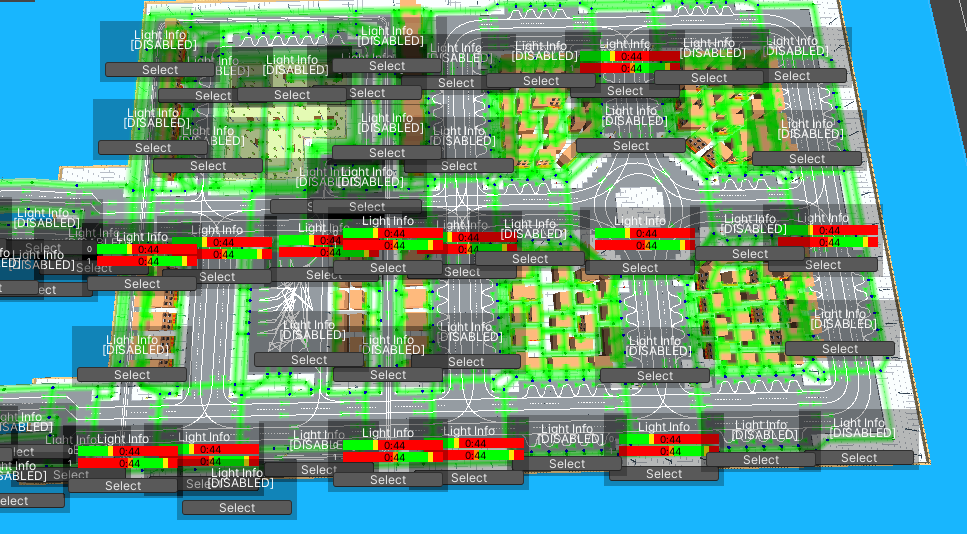
Select the desired crossroad and press Select.
In the TrafficLightCrossroad component, you can now set the timings.
How To Auto Connect Lights
You can automatically reconnect traffic and pedestrian lights to their closest relevant road nodes using the built-in auto-connector tool.
Requirements for Light Objects
For the auto-connector to detect and link your traffic lights correctly, ensure that the following setup is met:
The root GameObject of the traffic light must contain both the TrafficLightObjectAuthoring and the TrafficLightObject components.
Each child TrafficLightFrame component must have its Index direction property set strictly in accordance with where the physical frame (visor/lens) is facing. This direction is critical for the algorithm to properly align the traffic light orientation with the target road and traffic node. A small ray is displayed in the Scene view to visualize this direction.
Execution Steps
Open Global Light Settings.
Expand the Auto Light Connector foldout section.
Configure the following parameters:
Raycast Distance: Set the maximum search radius for finding nearby nodes.
Connect Only Missing: If enabled, the system will skip lights that are already connected to a valid crossroad.
Traffic Lights: Enable this checkbox to process vehicle traffic lights.
Pedestrian Lights: Enable this checkbox to process pedestrian lights.
Pedestrian Name Pattern: Enter a substring (e.g.,
Pedestrian) to identify pedestrian light objects by their name.
Click the Reconnect Lights button.
Note
The tool performs a proximity and directional search. Vehicle lights will be linked to the closest aligned TrafficNode, while pedestrian lights will look for a matching crosswalk node based on your name pattern.
Important
- If DOTS Simulation is enabled in your project settings and you want to use these traffic lights in the main scene during runtime, ensure that the Is Active checkbox is enabled on the TrafficLightHybridService component present in the scene. Without activating this option, scene traffic lights will not receive real-time state updates from the ECS simulation loop.
Note: If you are using the classic MonoBehaviour (Mono) simulation, this component is active by default and does not require manual toggling.
How To Assign Light
Open Global Light Settings.
Enable Show light connections.
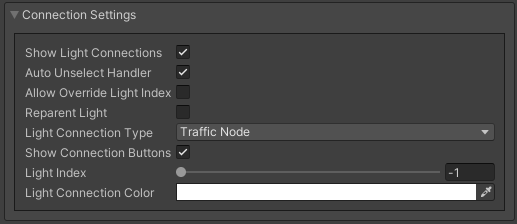
Select Light connection type for example Traffic node.
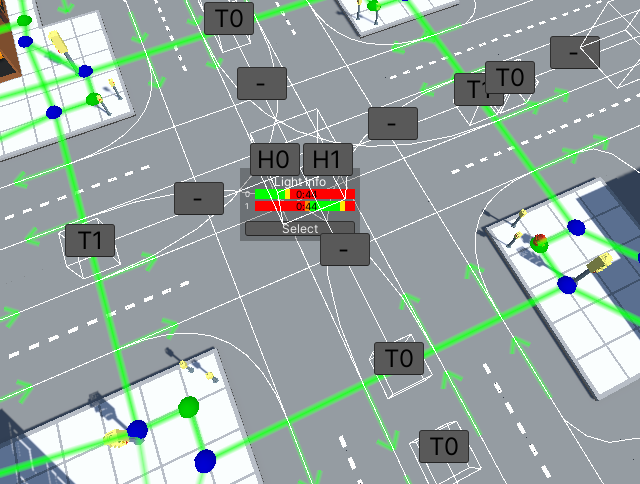
Select H0 or H1 depending on the desired light index.
Next, select the desired T (TrafficNode).
Now, the selected TrafficNode will have the selected TrafficLightHandler.
In the same way, you can assign Light objects by changing the Light connection type.
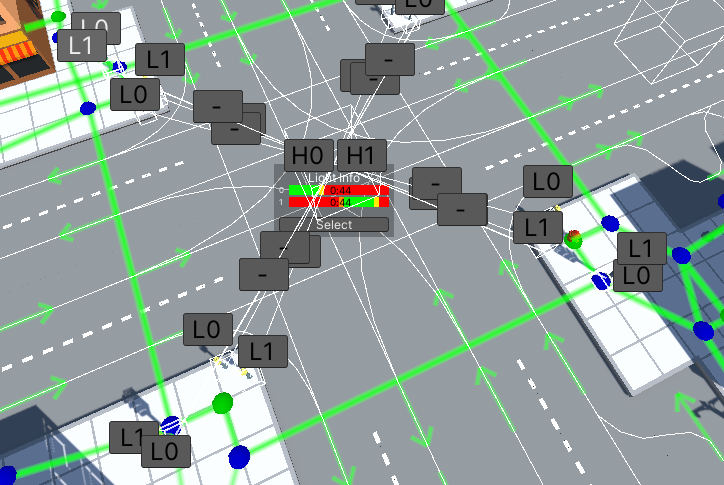
Light object connection example.
Global Lights Settings
Window for quick display of crossroad timings and for linking the traffic lights to different entities.
How To Use
Read more here.
Settings
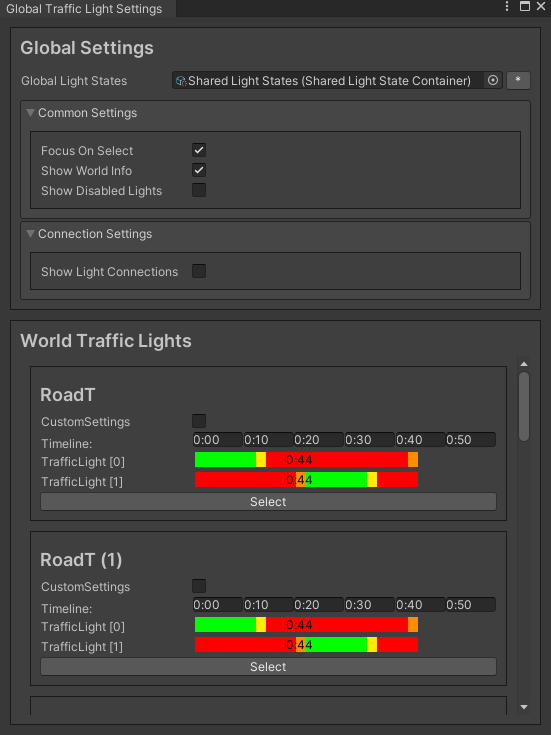
Common Settings
Scene light info example.
Scene light info (include disabled) example.
Connection Settings
- Light connection type :
All : show all connection types.
Traffic node : show traffic node connection only.
Light : show light object connection only.
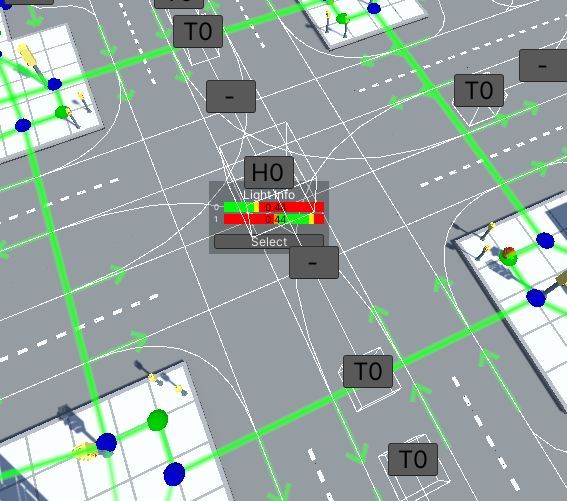
Selected Light connection type : [TrafficNode] and Lights index : [0] example.
World Lights
- Timeline: shows light states of crossroad and total duration.
TrafficLight [0] : TrafficLightHandler with light index 0.
TrafficLight [1] : TrafficLightHandler with light index 1.
SceneView Light Objects Description
- Select:
H0/H1 : TrafficLightHandler (index 0, index 1).
T0/T1/T : TrafficNode (index 0, index 1, no index).
L0/L1/L : Light object (index 0, index 1, no index).
- Unselect:
H- : unselect TrafficLightHandler.
T- : unselect TrafficNode.
L- : unselect Light object.
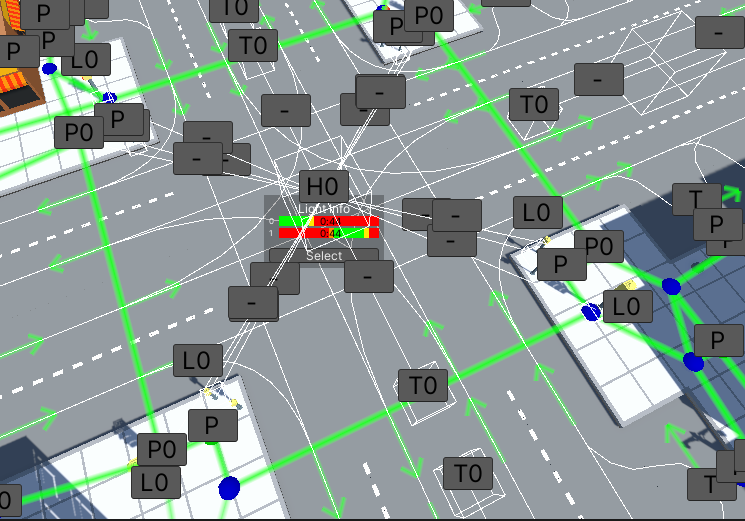
All connection types and -1 light index are enabled example.
How To Replace Global Light States
Open Global Light Settings window.
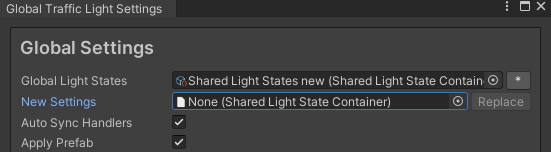
Click the * button to expand the Replace settings.

Select the source state container you wish to replace.

Select your new desired State container.
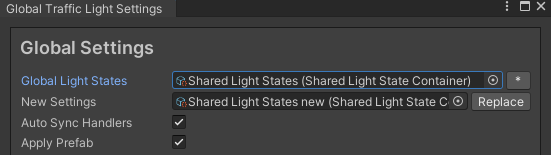
Click the Replace button.
As a result, all the source State containers are replaced.
Shared Light State Container
Contains common timings of light states that are shared between traffic light crossroads. You can easily replace shared containers using the Global Light Settings tool.
How To Create
from the project context :

Default Container Path

Project path example.
Settings
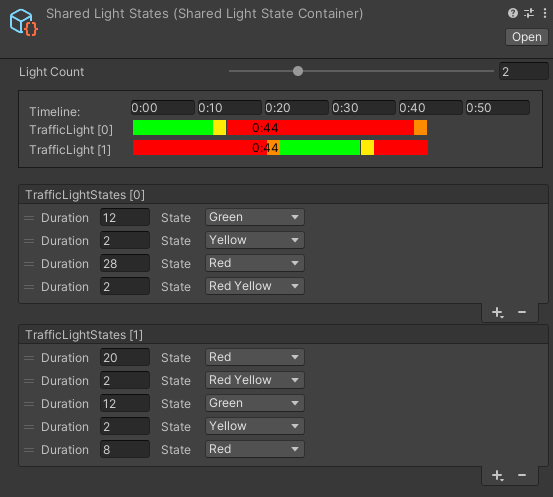
Example.
Light States
Green : car only drives on a green lights.
Red
Yellow
Red Yellow : red and yellow lights at the same time, shown as orange in the inspector.
Light Index
Unique traffic light ID in TrafficLightCrossroad defined in TrafficLightHandler used to link TrafficLightHandlers and traffic lights by index.
Traffic Light Handler
Traffic Light Handler is an entity for handling the state of a traffic light. Is part of TrafficLightCrossroad.
Settings
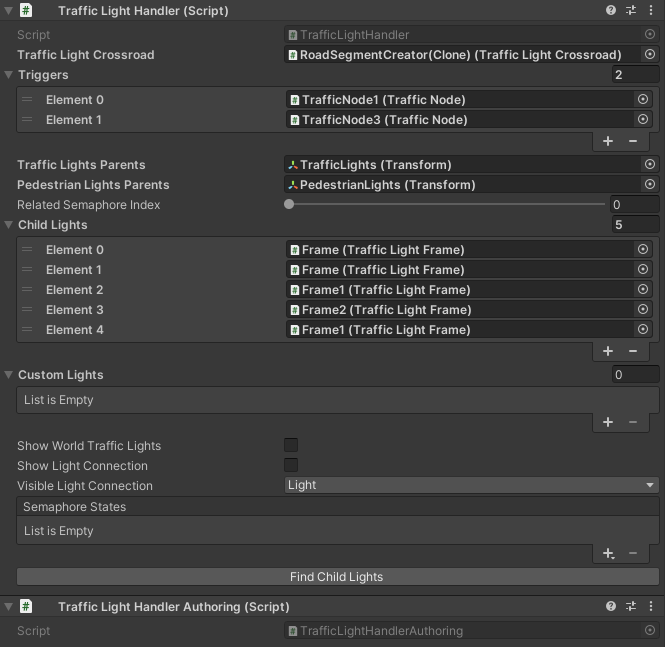
Components
Traffic Light Object
Main Component
Traffic light object in the scene (parent component of the traffic light).
Contains data on the light frames and linked light indexes.
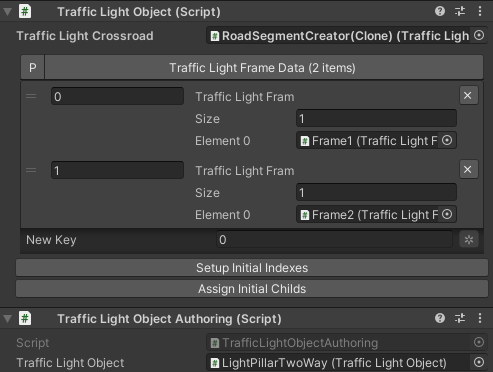
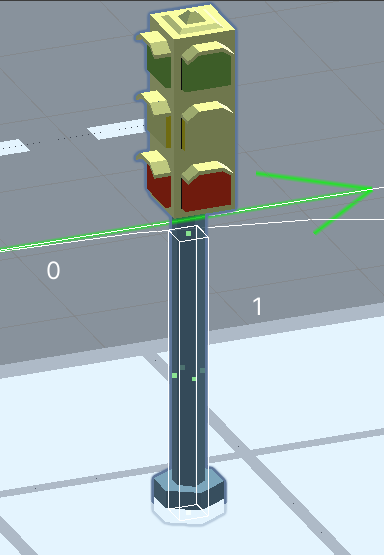
Traffic light object example.
Light Frame
A child component that contains the data for the traffic light indicators.
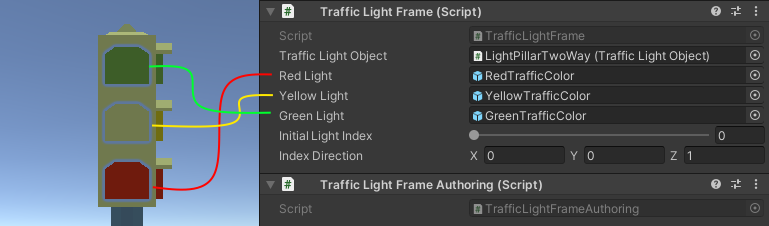
Traffic Light Hybrid Service
The TrafficLightHybridService component is responsible for synchronizing light states between the DOTS simulation ECS world and MonoBehaviour listeners/components on the scene.
Important
If DOTS Simulation is enabled in your project settings and you want to use traffic lights in the main scene, you must ensure that the Is Active checkbox is enabled on the TrafficLightHybridService component present in the scene. Without activating this option, scene traffic lights will not receive real-time state updates from the ECS simulation loop.
Settings
Is Active: Main toggle to enable or disable the hybrid synchronization. Only available and required when DOTS Simulation is active (for Mono simulation, it’s active by default).
Register Light States: Enable this if you need to read the current light state of a crossroad from classic MonoBehaviour scripts using the
GetLightState(int id)method.Register Light Entities: Enable this if you need to dynamically force or modify the light states of ECS entities via standard scripts.