Fantastic City Generator
How To Use
Buy & download, import the following asset plugin:
Getting Started
Add the FCG scripting define to the Player Settings of the project.
Open your scene.
Create City base, in the Unity toolbar open:
Spirit604/CityEditor/Create/City Base
Create a new game object & add FCGSceneGenerator component.
Generate a new config:

Set the World simulation type to Hybrid mono in the General settings config.
Find the HybridTrafficCarMonoSkinBase Arcade prefab & set the ground layer to Default.
Open the folder where the FCG traffic light prefabs are stored.
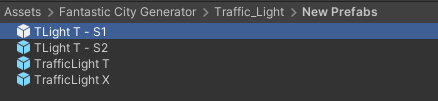
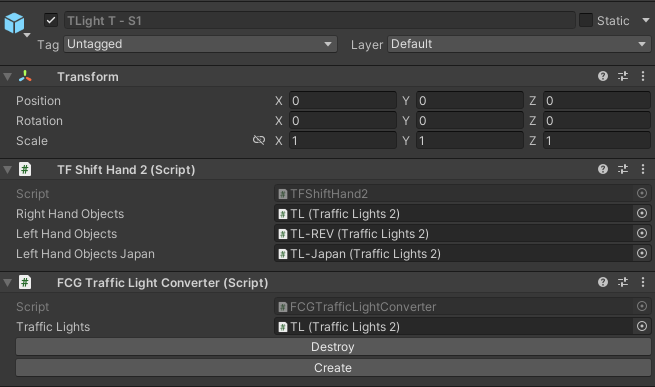
Open each prefab in the prefab stage & add the FCGTrafficLightConverter component & press the Create button.
Remove or disable built-in traffic system.

Import FCG templates.

Select Import template road blocks mode in the inspector.

Drag & drop all FCG prefabs
Select Template container from the list
Press Generate button
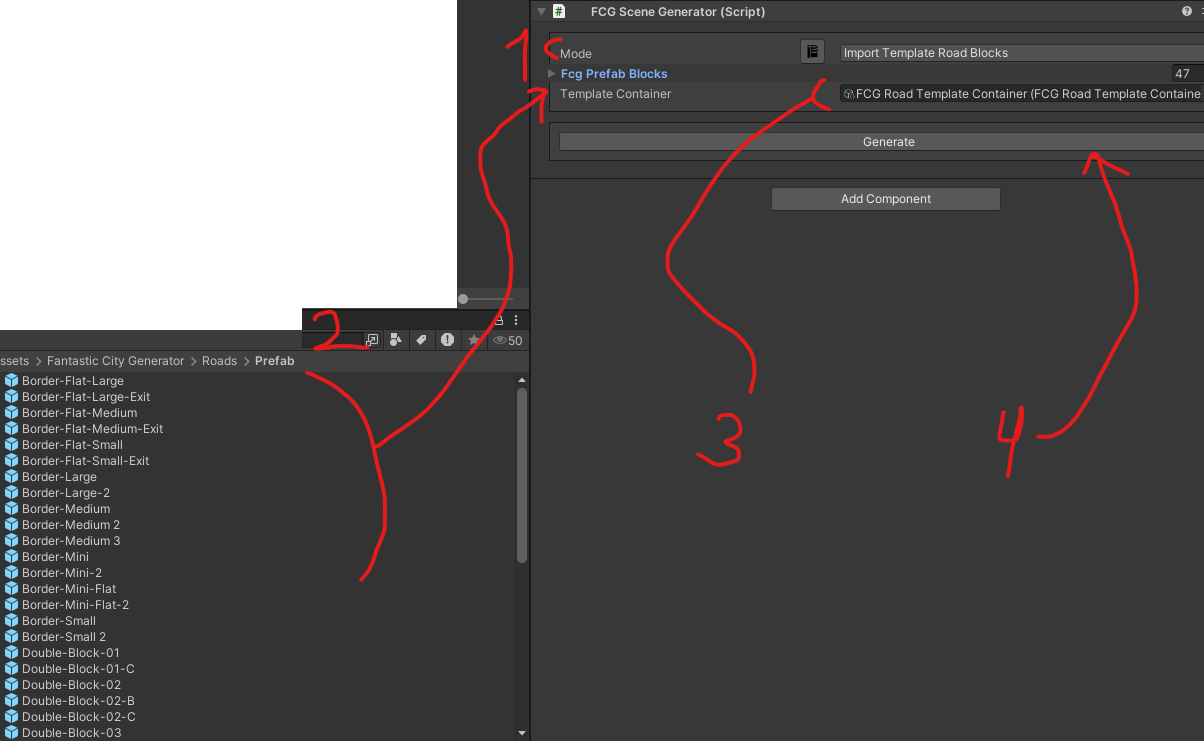
Example
Select mode type depending on your needs.
Editor Mode
Road segments are connected with pregenerated prefab blocks in the Editor.
Switch to Connect Editor Blocks mode in FCG Scene Generator
Press Generate button
Runtime Mode
Add the RUNTIME_ROAD scripting define to the Player Settings of the project.
After the generation of Runtime Blocks is finished, add a new gameobject & add a RuntimeRoadManager component.
Replace the code in RunTimeSample.cs with the GenerateCityAtRuntime method:
public void GenerateCityAtRuntime(int citySize)
{
        ObjectUtils.FindObjectOfType<RuntimeRoadManager>().RegenerateGraphAsync(() =>
        {
                generator = cg.GetComponent<CityGenerator>();

                generator.GenerateCity(citySize, false, false); // (city size:  1 , 2, 3 or 4)
        });
}