Car Prefab Creator
How To Use
From the Unity toolbar, open Car Prefab Creator.
Spirit604/CityEditor/Car Prefab Creator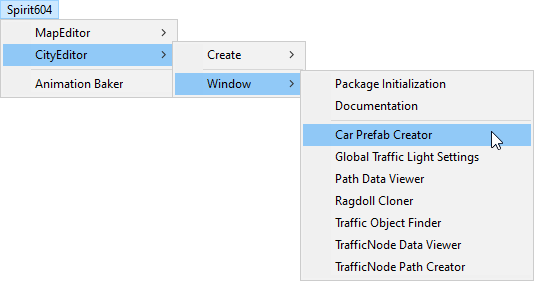
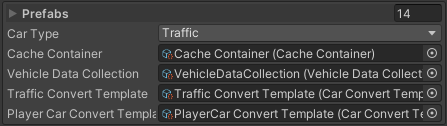
Drag and drop car prefabs into the Prefabs field.
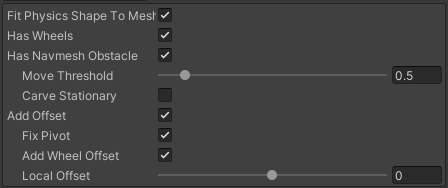
Configure the Common settings (hull mesh routing, pivot fixing, etc.).
Choose your workflow based on the desired Entity Type:
Hybrid Mono (MonoBehaviour)
Select Entity Type: In the Save tab, set Entity type to Hybrid entity mono physics.
Configure Controller: In the Save tab, set your Controller type (Arcade built-in sample or Custom user). If using a custom solution, assign your IVehicleInput adapter script.
Save Setup: Configure the path and preset in Save settings.
Process: Click Scan. In the Prefab Info tab, customize traffic-related settings and verify the steering angle matches your custom car controller.
Create: Click Create to generate MonoBehaviour-compatible prefabs.
Custom Physics (Pure/Hybrid)
Configure Physics Shape: In the Common settings tab, enable Fit physics shape to mesh (do not enable Include Wheels, as custom physics uses independent wheel configurations).
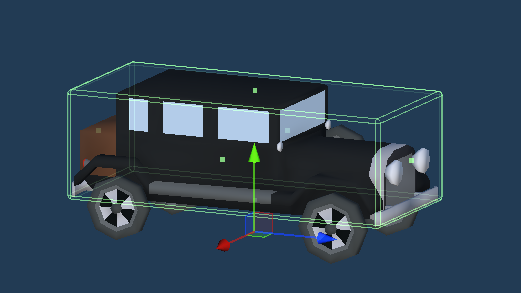
Custom physics entity shape result example
Select Entity Type: In the Save tab, set Entity type to Hybrid Entity Custom Physics or Pure Entity Custom Physics.
Save Setup: Configure the path and preset in Save settings.
Process: Click Scan. In Prefab Info, select Template or New to set up advanced suspension, friction, and wheel components.
Create: Click Create to generate assets.
Simple Physics (Pure/Hybrid)
Configure Physics Shape: In the Common settings tab, enable Fit physics shape to mesh & Include Wheels [Required for Simple physics only].
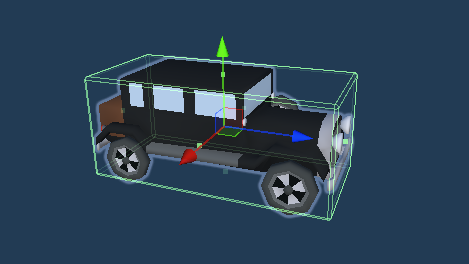
Simple physics entity shape result example
Select Entity Type: In the Save tab, set Entity type to Hybrid entity simple physics or Pure entity simple physics.
Save Setup: Configure the path and preset in Save settings.
Process: Click Scan, adjust common settings in Additional Settings, and fine-tune offsets in Prefab Info.
Create: Click Create to generate assets.
If some of the body or wheel offsets are wrong, drag and drop the created car prefab into the scene & use this tool to re-create cars with new offsets using the Create button again until the desired result is achieved.
Prefab Settings
- Prefab source type:
- Scene
Targets prefab parent : prefabs will be taken from the selected root from the scene.
- Project
Prefabs : selected prefabs from the project.
- Car type:
Traffic : prefab car will be created for the traffic.
Player : prefab car will be created for the player.
Common Settings
- Assign hull mesh: should find the hull of the car.
Parent is hull mesh : car root contains a car mesh.
- Has navmesh obstacle: does the car contain NavMeshObstacle component.
Move threshold
Carve stationary
Carve time to stationary
- Add offset: offset of the vehicle hull along the Y axis.
Fix pivot : fixes the pivot point if the pivot point is in the centre of the mesh.
Add wheel offset : adds wheel offset size.
Local offset : custom offset value.
Save Settings
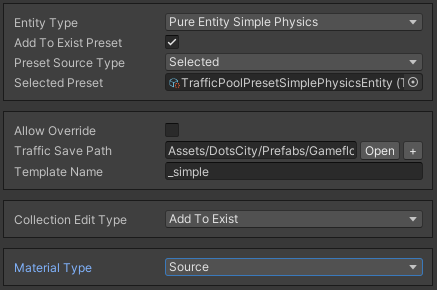
- Save to exist preset:
- New preset settings:
- Prefab save type:
Override source : selected prefabs will be replaced by new ones.
Create new if not exist : new prefabs will be created only if there are no previously created ones by the selected path.
Override target : previously created prefabs will be overwritten in case of a duplicate.
- Prefab save path type:
Original prefab path : prefabs will be created in the directory where the selected prefabs are located.
Template prefab path : Prefabs will be created in the directory where the template is located.
Custom path : user’s path of creation.
- Collection edit type:
Add to exist : add vehicles to exist vehicle collection.
Override : overrides vehicle collection by created vehicles.
- Material type:
Source : material is copied from the source prefab.
Custom atlas material : user’s custom atlas material.
New unique material : new material is generated based on the user’s own material.
Template Settings
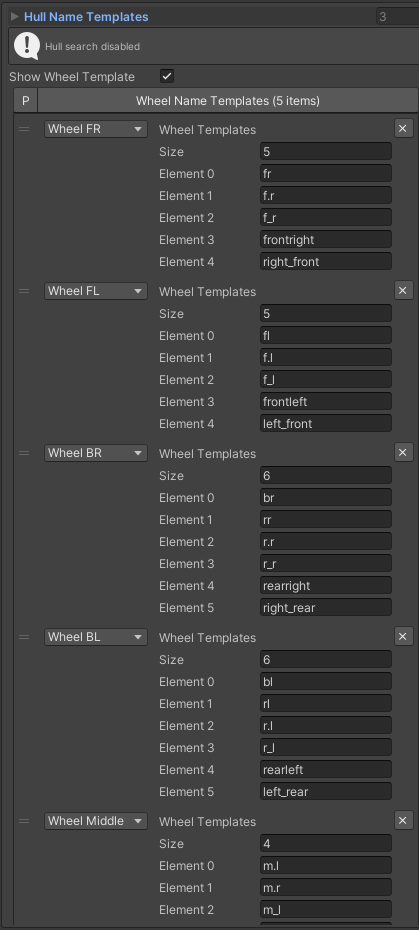
- Wheel name templateskeyword phrases for automatic wheels searches.
Wheel FR : forward right wheel.
Wheel FL : forward left wheel.
Wheel BR : backward right wheel.
Wheel BL : backward left wheel.
Wheel Middle : additional wheels.
Preview Settings

Additional Settings
Common Settings
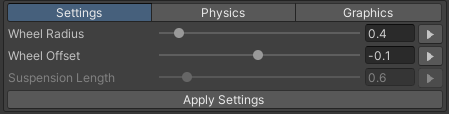
Note
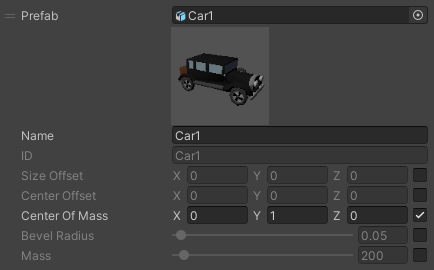
Editing additional parameters will affect all cars in the Prefab Info tab, to make unique parameters check the toolbox opposite on the parameter in the Prefab Info.
Arrow-button applies the setting for the selected parameter.
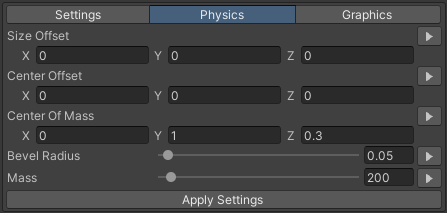
Physics
Info Tab
Graphics
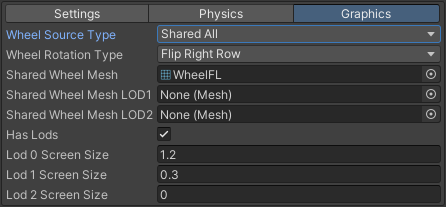
- Wheel source type:
Model unique : the wheels remain as in the original model.
Shared from model : the wheel model selected by the user from the original model is used for all wheels.
Shared all : the wheel model selected by the user shared between all wheels.
- Wheel rotation type [shared wheel only]:
Source : the wheel rotation remains unchanged.
Flip left row : rotate the wheel in the left-hand row by 180° if you are using the wheel model from the right-hand row.
Flip right row : rotate the wheel in the right-hand row by 180° if you are using the wheel model from the left-hand row.
- Has lods: on/off LODs for vehicle.
Lod 0, 1, 2 screen size : screen size of LOD.
Note
Wheel sharing is useful for using the same wheel model for all wheels to reduce drawcalls.
Info Tab
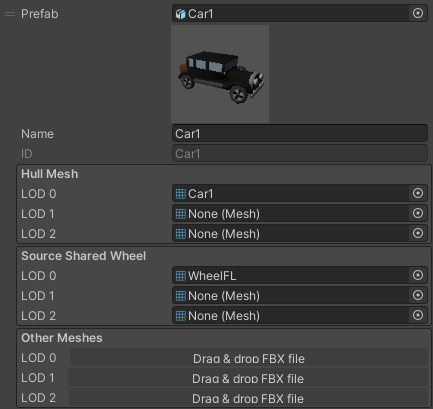
Prefab Info
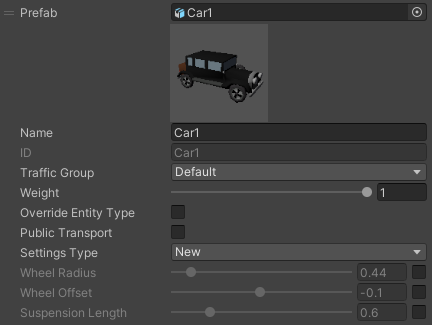
Car Info
Prefab : reference to source prefab.
Name : user’s name of the vehicle.
ID : new ID entry for vehicle collection.
Traffic group : traffic group of the vehicle.
- Override entity typenew entity type for selected vehicle (might be useful for specific vehicles such as tram).
Entity type
- Public transporton/off public transport feature. (Settings)
Predefined road
Capacity
Entries
- Settings type:
New : user-defined settings.
Template : vehicle settings are copied from the selected template [custom physics vehicle only].
Clone model : vehicle settings are copied from the selected CarModel in the list.
Wheel radius : wheel radius. (can be unique value)
Wheel offset : wheel offset by Y-axis of the vehicle. (can be unique value)
Suspension length : suspension length of the vehicle. (can be unique value) [Custom physics vehicles only]
