MicroVerse Roads
How To Use
Buy & download, import the following asset plugins:
Getting Started
Unpack microverse prefab package:

Open Roads Demo or your scene.
Create City base.
Create a new gameobject & add MVR_Generator component.
Assign MVR config & config from the list.

Customize all settings according to your needs.
Press Generate button
View a Generated data, fix any problems if this tab has them & generate again.
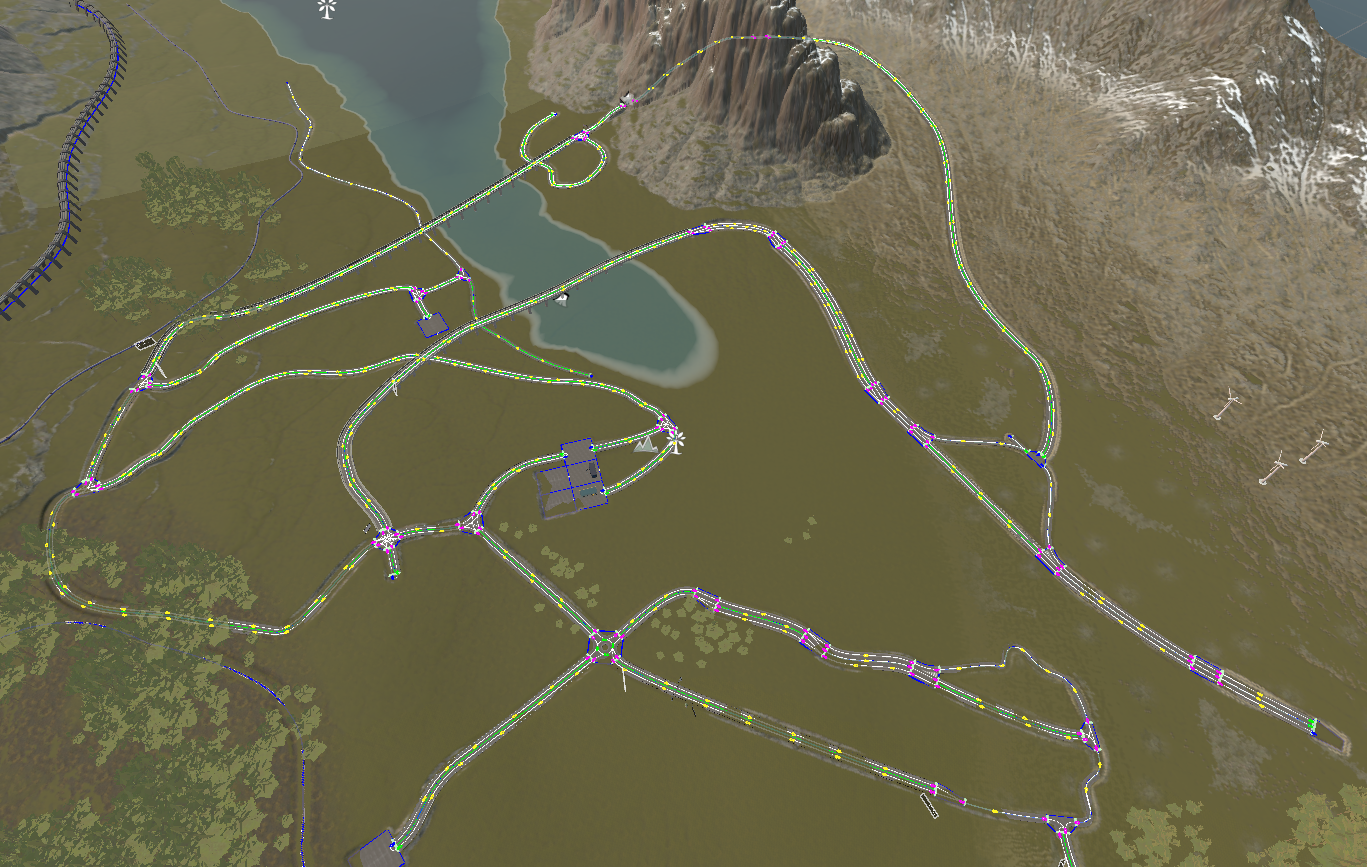
Result example.
If you have Not found road objects in the Inspector and are using your own microverse road objects, use
MVR UserPrefabto add the prefabs inMVR Configif your prefab is repeatable and not unique or useMVR UserSceneSegmentif you have a unique road segment for a road object. After adding these components, regenerate the scene.Generate a subscene.
If you want to regenerate roads, press Move back button in the Hub & regenerate roads in MVR_Generator & generate subscene in the Hub again.
MVR UserPrefab
This component helps users conveniently add prefabs to the MVR config.
How To Use
Create a road segment in the scene where you want your custom intersection.
Add your segment to prefabs.
Add
MVR_UserPrefabcomponent.Select the Intersection in the scene by pressing the Select button.
Press Add Prefab button in the inspector.
Now, your prefab addded to MVR config & you can regenerate the scene.
MVR UserSceneSegment
This component prevents the road segment from being cleaned up during regeneration, useful for unique road objects.
How To Use
Create a road segment in the scene where you want your custom intersection.
Add
MVR_UserSceneSegmentcomponent.In the inspector, press Sync Position to synchronize the intersection and segment positions.