Structure
Project Scenes
Demo Traffic : the main optimized demo scene of the project (read more about scene structure here).
Demo Traffic Mono : the new demo scene of the project, which contains an example of traffic & NPCs fully interacting with monobehaviour scripts (v1.1.0+).
Traffic test scene : traffic test scene where all parameters can be tested with a set of most traffic situations.
Props test scene : props test scene where the workability of entities can be tested.
Traffic stress scene : stressed scene is extremely crowded with vehicles.
Traffic stress scene mobile : mobile version of Traffic stress scene.
Vehicle physics stress scene : stress scene for the thousands cars with Custom vehicle controller.
Vehicle custom physics test scene : scene for testing various parameters of the Custom vehicle controller.
Scene Hierarchy
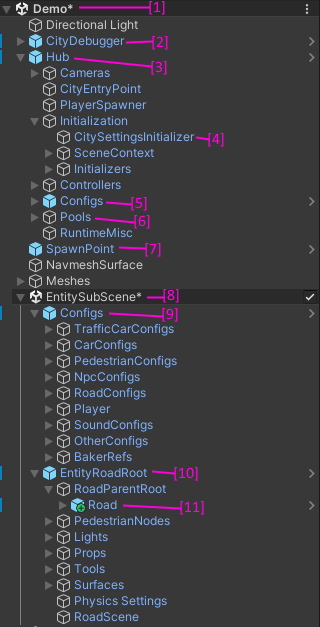
Main scene.
City debugger : contains all the debuggers for the city.
Hub : contains the Entity Subscene Generator (read more on how to create it).
City Settings Initializer : contains the General Settings of the DOTS city [moved to the Config tab].
Main scene configs (read more about the config editing workflow).
Pools : contains all the entity presets.
Spawnpoint : spawnpoint of the player (assigned in the PlayerSpawner if built-in solution in use).
Subscene (EntitySubScene) : subscene into which all of the entities are converted (generated by the Entity Subscene Generator).
Subscene configs (read more about the config editing workflow).
EntityRoadRoot : object root generated by the Entity Subscene Generator.
Road : road parent (read more about the road editing workflow).
Scene Components
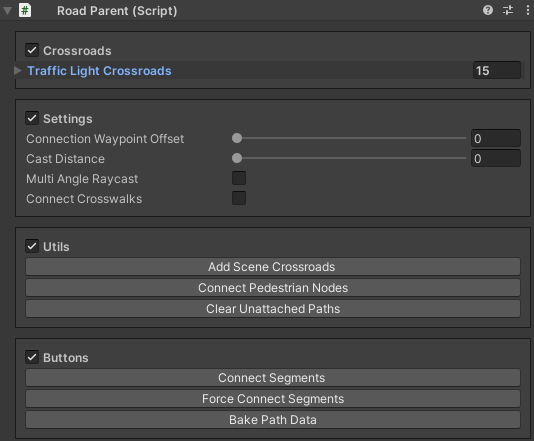
Road Parent
The root of all crossroads in the scene.
How To Use
Read more in the Road Network Workflow section.
Settings
- Connection waypoint offset
Automatically adds a waypoint at each selected offset to the automatically created paths (if the value is greater than zero).
- Cast distance
Raycast connection distance between Traffic nodes. If set to zero, the value is infinite.
- Multi angle raycast
Multi-angle raycasting along the Z-axis.
Utils
- Add crossroads
Adds a scene crossroad if it is missing.
- Clear unattached paths
Deletes the paths that are not connected to any TrafficNode.
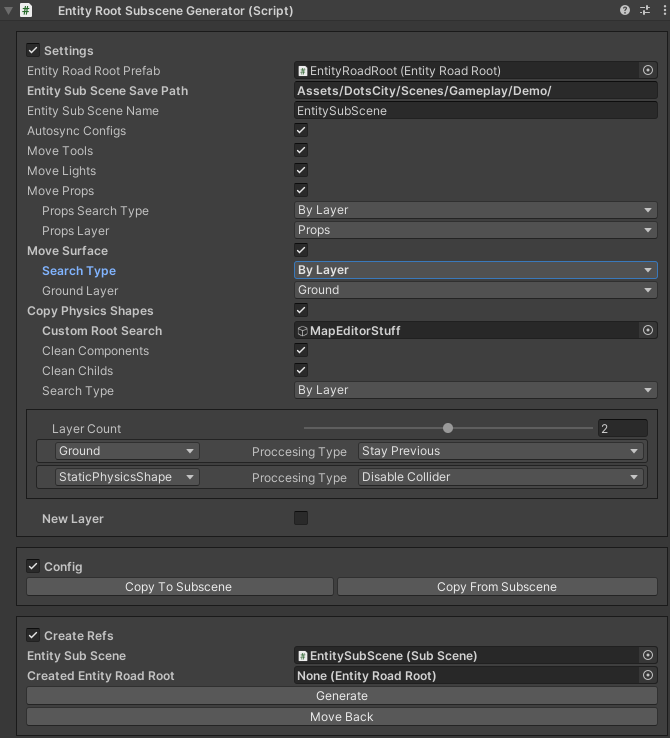
Entity Subscene Generator
Where To Find
How To Use
Read more in the Road Entity Subscene section.
Settings
- Entity subscene save path
Save path of the subscene.
- Entity subscene name
Name of the subscene.
- Autosync configs
On/off auto-sync config on the main scene & subscene.
- Move tools
On/off moving of the following tools: RoadSegmentPlacer.
- Move lights
On/off moving of the subscene lights.
- Move props
On/off moving of props.
- Move surface
On/off moving of the selected physics surface.
- Copy physics shapes
On/off feature of physics shape cloning.
Config
- Copy to subscene
The subscene configs will be synchronized with the main scene.
- Copy from subscene
The main scene configs will be synchronized with the subscene.
Buttons
- Generate
Generates the subscene.
- Move back
Move the road from the subscene to the main scene (can be useful for editing roads in the main scene due to Editor performance).
How To Use
Automatically used by the Entity Subscene Generator.
PhysicsShape Transfer Service
This tool only works for DOTS if the DOTS simulation type is selected in the General Settings.
Tool for cloning physical shapes from the main scene to the subscene.
There is also a tool to maintain both the default physical world and the DOTS physical world at the same time, so that default colliders and DOTS colliders exist at the same time if you need to use default colliders in MonoBehaviour classes.
- Current project use cases:
Cloning of physical shapes from the main scene to split them into subscene pieces by using SubSceneChunk Creator or cloned into the main subscene by using Entity Subscene Generator.
Note
The tool can only use one tool at a time, either an Entity Subscene Generator or a SubSceneChunk Creator.
Settings
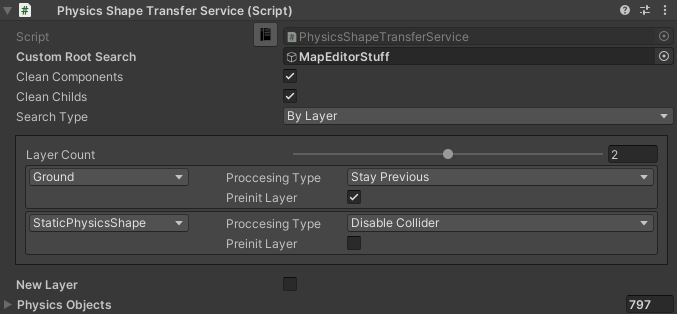
- Clean components
Removes all components from the physics shape.
- Clean childs
Removes all childs from the physics shape.
- Search type
Searching shapes by layer or tag.
- Proccesing type
Stay previous : cloning found PhysicsShape or Collider to subscene, useful to keep default collider and Unity.Physics collider running at the same time.
Disable collider : cloning found PhysicsShape or Collider to subscene and disable it in the main scene.
- Preinit layer
Enable pre-init cull state for physics objects.
- New layer
Assigns new layer for cloned shape.